Cargo-Planner Docs
Exporting a load plan
From the load plan toolbar you can export your load plan as a PDF (via browser print) or as an Excel file. Both buttons are visible at the top of any load plan.
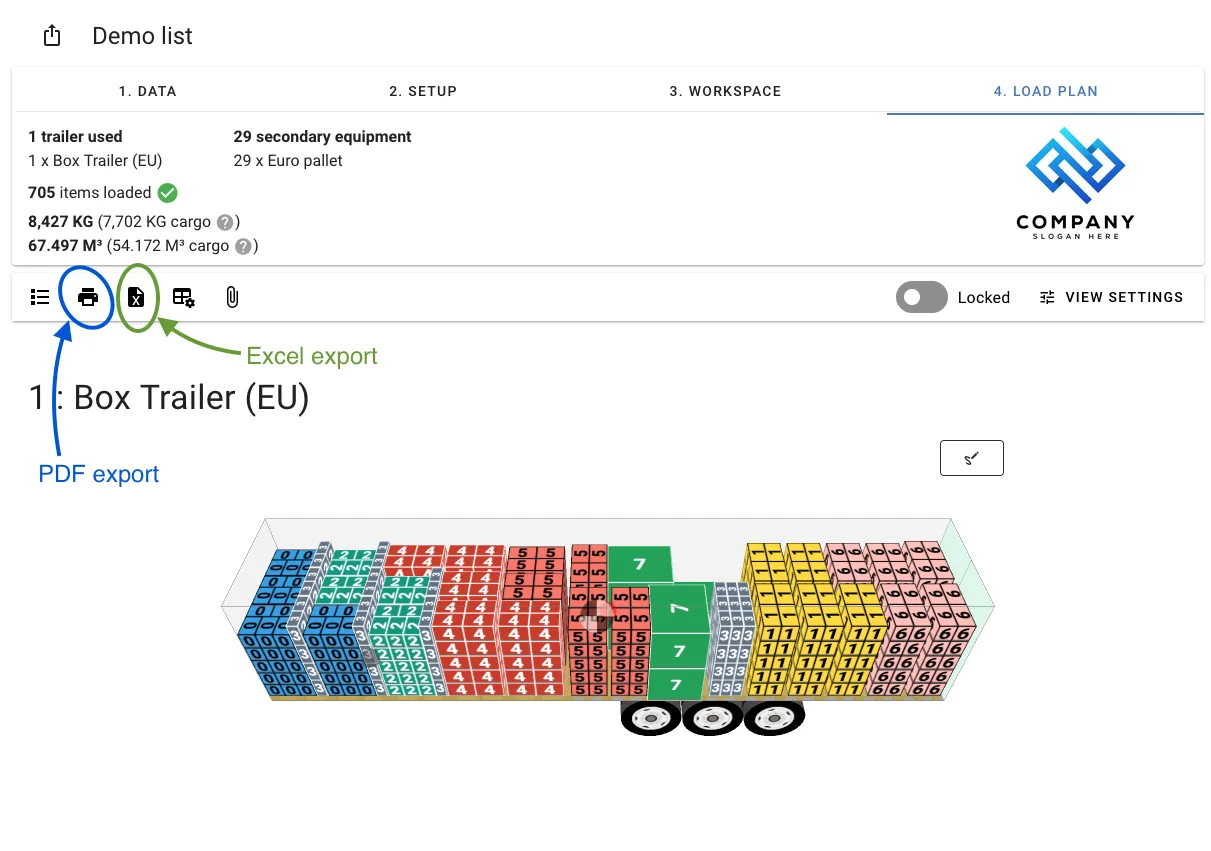
Print / Save as PDF
Click the printer icon in the toolbar to open the browser print dialog. From there, set the destination to Save as PDF to download the load plan as a PDF file.
The keyboard shortcut Cmd+P (Mac) or Ctrl+P (Windows/Linux) also triggers the same export flow.
The app waits for all 3D container visualizations to finish rendering before opening the print dialog. On large load plans with many containers, this can take a few seconds.
The PDF output is exactly what you see on screen — layout, view settings, and watermark all apply. To adjust what appears in the PDF, configure View Settings or your Layout before printing.
Company watermark
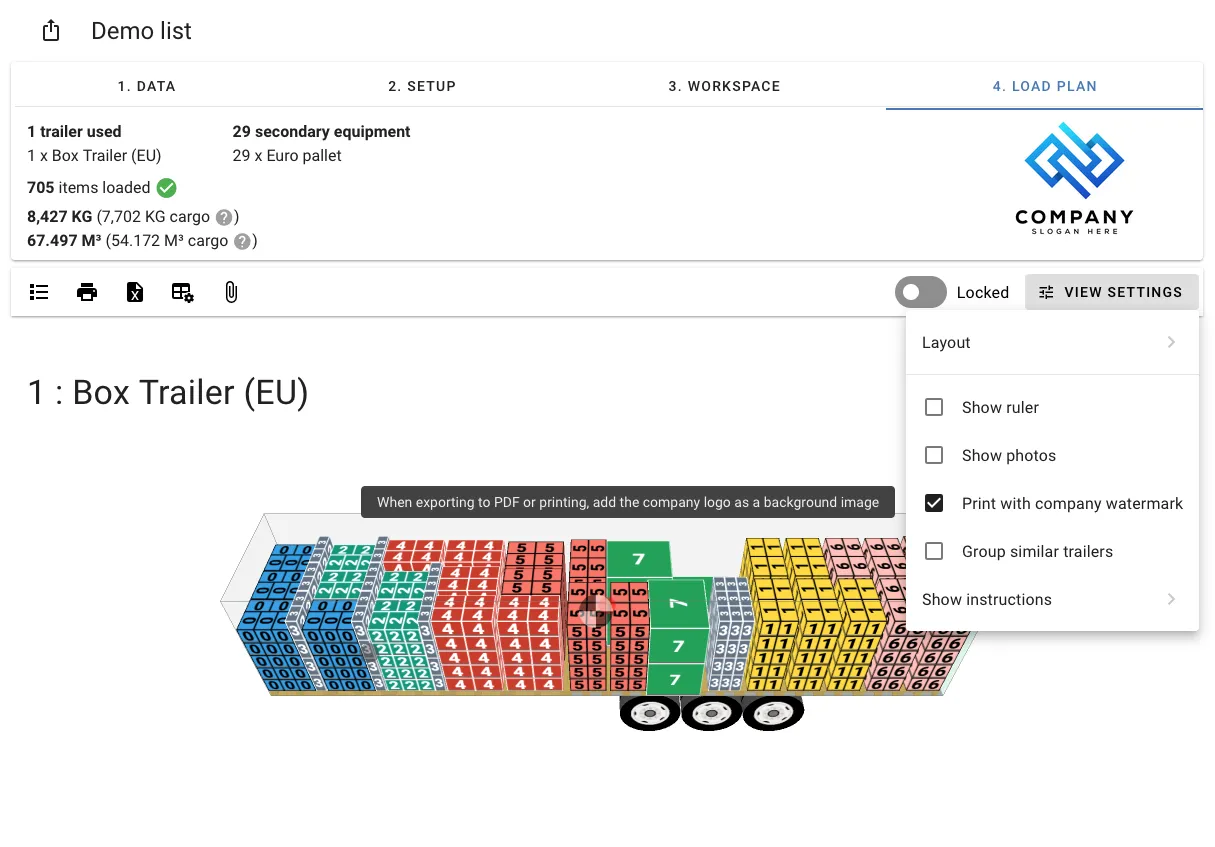
If your company has a logo uploaded, you can add it as a background watermark to the PDF. Enable Print with company watermark in the View Settings menu.
Export as Excel
Click the Excel icon in the toolbar to open the export settings dialog. Configure the options, then click Download.
Excel export requires a Standard plan or higher. It is not available on the Lite plan.
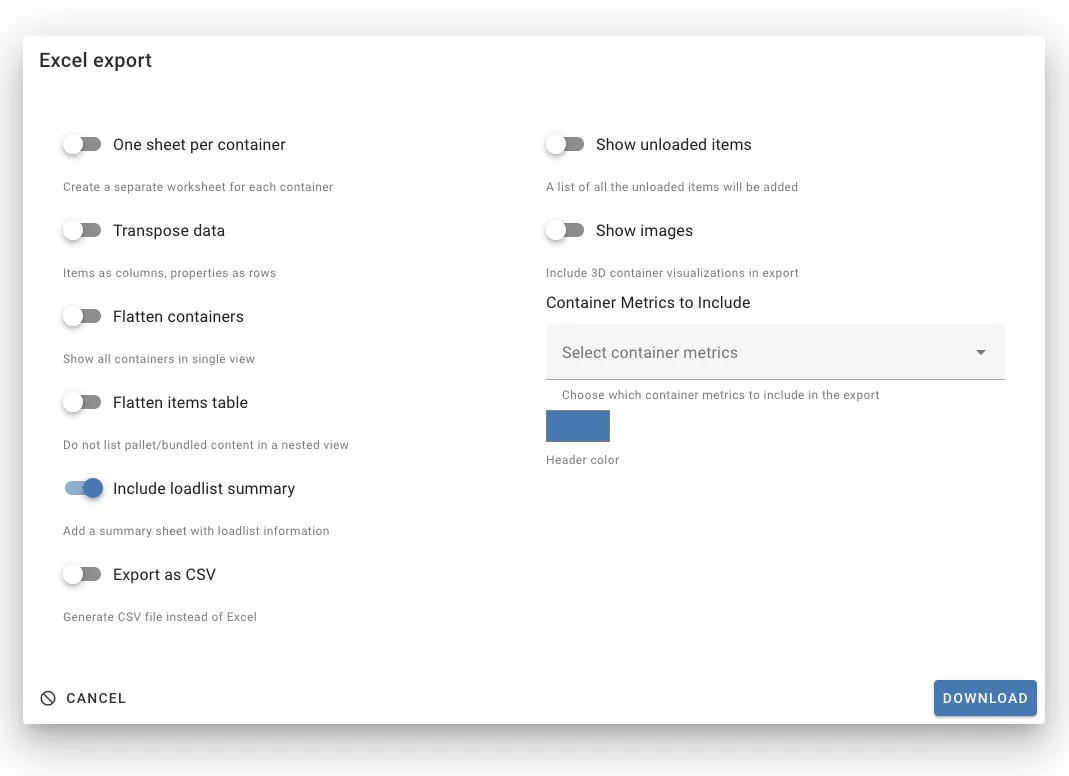
Your settings are saved automatically and will be remembered for future exports.
Export format options
| Option | Description |
|---|---|
| One sheet per container | Creates a separate worksheet for each container instead of combining all containers on one sheet |
| Transpose data | Rotates the items table so items are columns and properties are rows |
| Flatten containers | Shows all containers in a single flat view rather than grouped |
| Flatten items table | Lists all items individually without nesting pallet or bundle contents |
| Include loadlist summary | Adds an extra sheet with overall loadlist statistics |
| Export as CSV | Downloads a CSV file instead of an Excel (.xlsx) file |
Display options
| Option | Description |
|---|---|
| Show unloaded items | Appends a list of any cargo items that were not loaded into a container |
| Show images | Embeds 3D container visualizations in the file (not available when exporting as CSV) |
| Container metrics | Select which container metrics (weight, volume, utilization, etc.) to include as columns |
| Header color | Customize the background color of the header row |
Company-enforced settings
Administrators can lock Excel export settings at the company level under Company Settings. When settings are enforced, individual users cannot override them and the options will appear disabled.