Cargo-Planner Docs
Custom rules
Custom rules allow you to create specific loading behaviours for cargo that are not accessible through other settings or data-parameters.
Each rule consists of three parts:
-
Selector: What items the rule should apply to. You can create filters with specific properties of items like Items with a length greater than 100cm or Items with a Group/Shipment of “Group A”. You can combine multiple filters, selecting a smaller and smaller section of the total items with each filter. If left empty this rule will apply to all items. See Selectors for the full list of properties and comparisons.
-
Condition: How these items should behave. Some conditions also includes a second selector input. A list of each condition is shown below
-
Containers: In what hold-type this rule applies. If left empty, the rule applies to all container types.
Rules can be given an optional name, enabled or disabled individually with the checkbox in the rule header, and reordered by dragging.
Examples
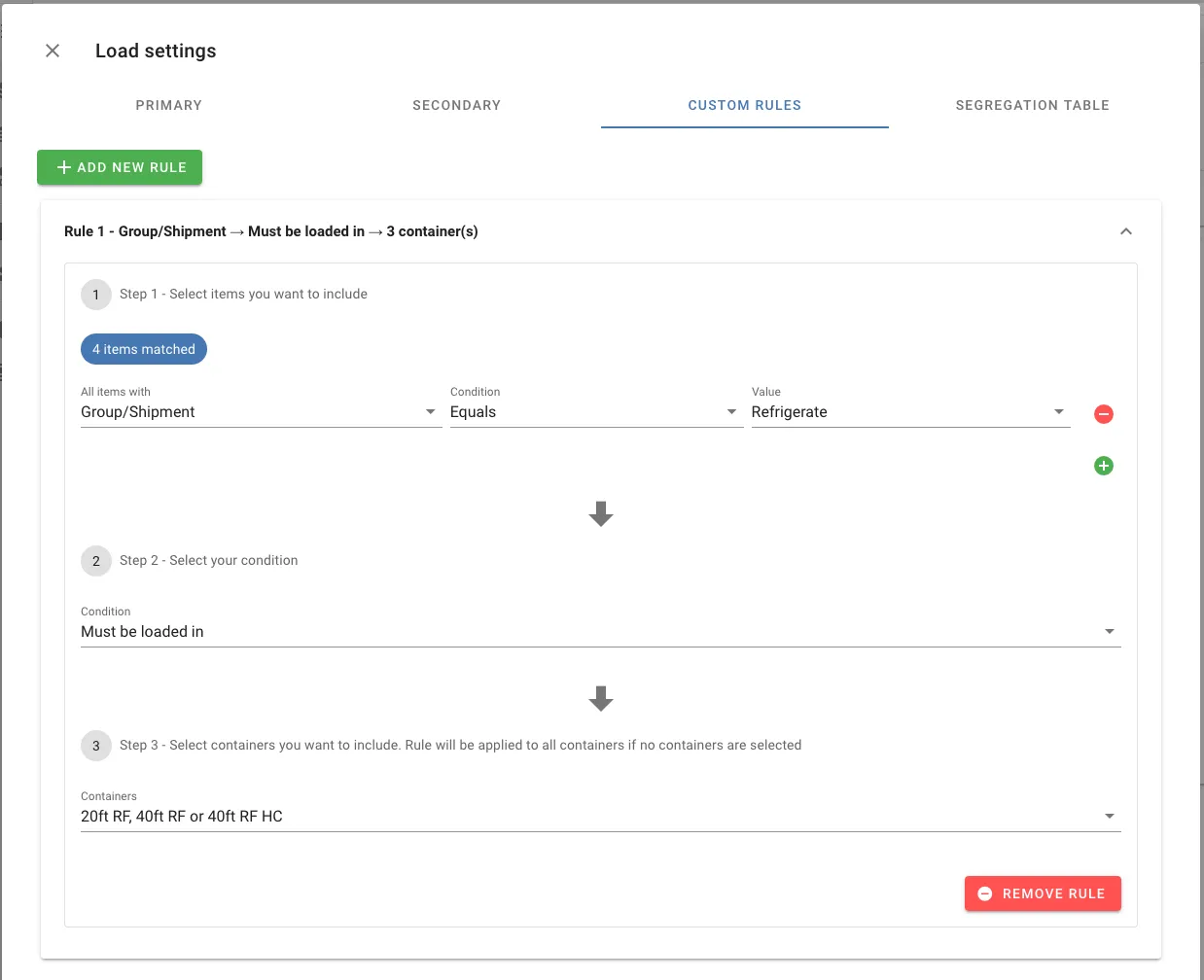
A custom rule stating that any item with the group “Refrigerate” needs to be loaded into one of the reefer container-types
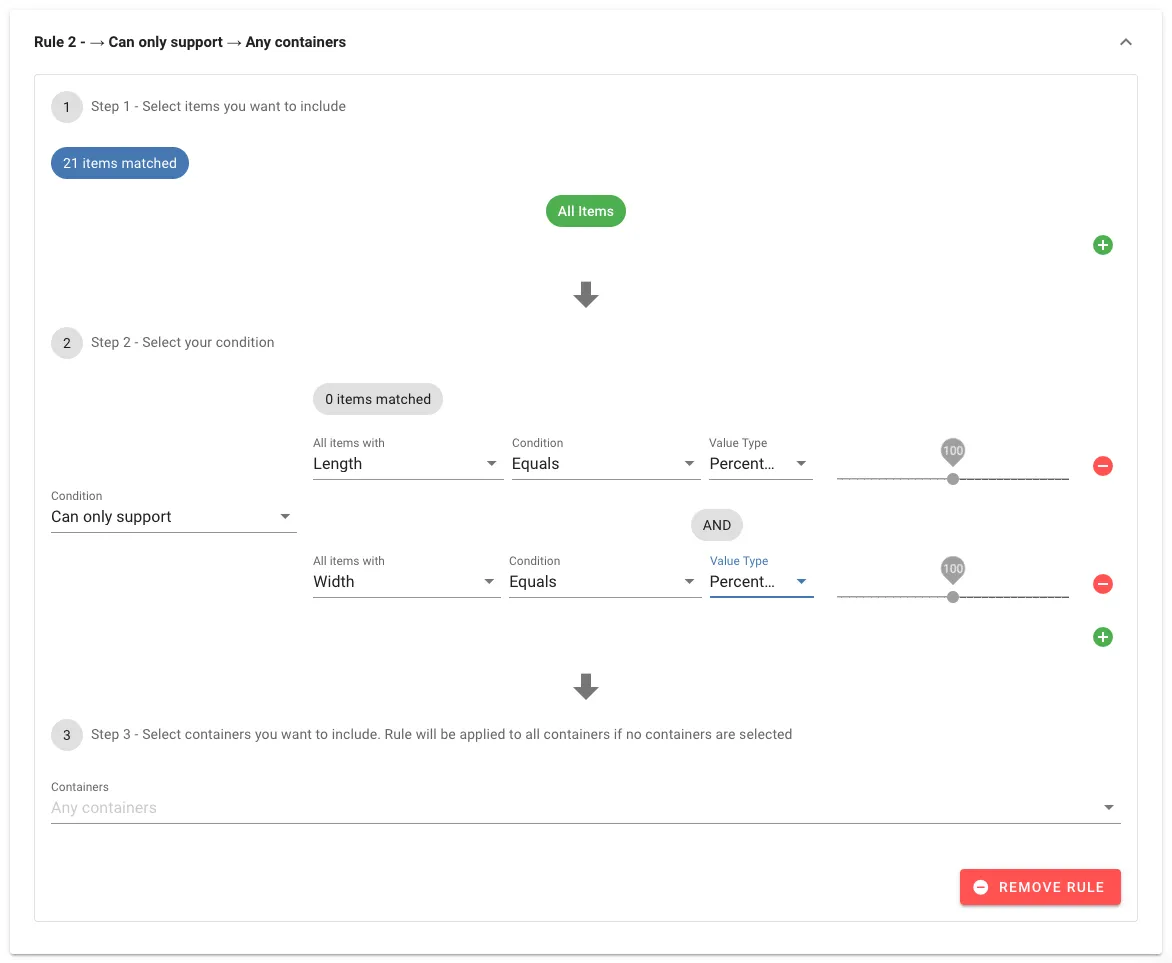
A rule that limits stacking to only be allowed on cargo of the exact same dimensions
Selectors
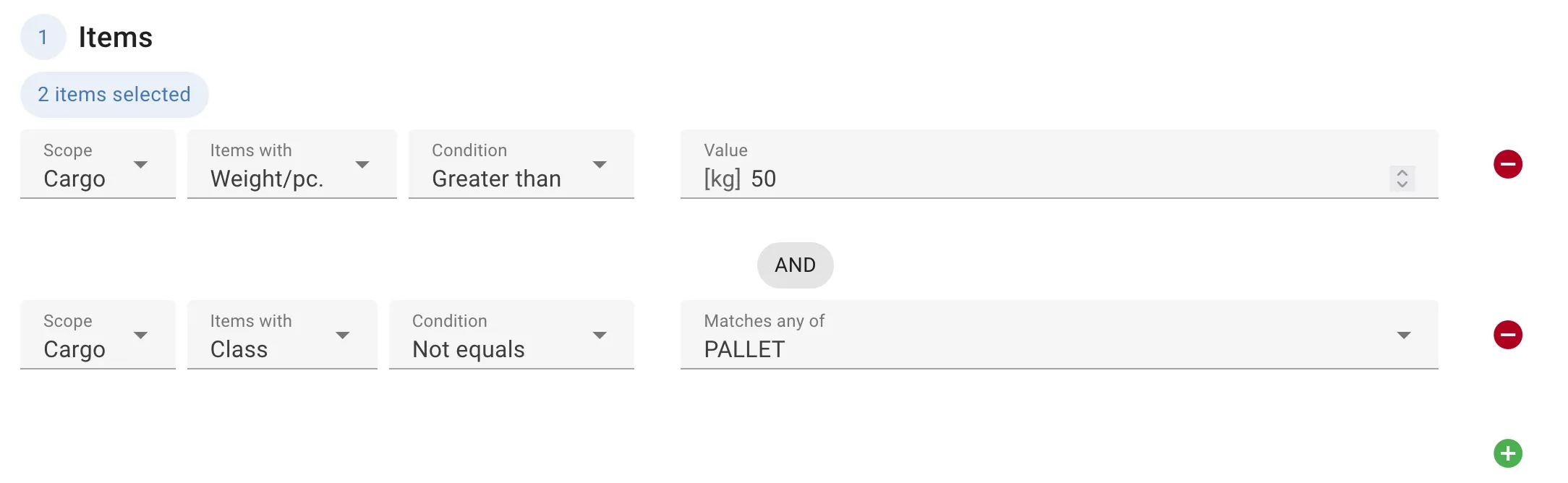
A selector is a filter that picks out the items a rule applies to. Each selector row consists of a Scope, a Property, a Condition (comparison) and a Value.
Add more rows with the + button. Rows are combined with AND — an item must match every row to be selected. To select items matching either of two values, use a single row with several values in Matches any of instead.
While editing, a chip shows how many items in the load list currently match, and hovering it lists them. When the selector depends on how the cargo is loaded, the count shows as Unknown, since it cannot be known before the calculation.
Scope
| Scope | Selects |
|---|---|
| Cargo | The individual items that match the selector |
| Secondary equipment containing | Pallets or other secondary equipment that contain at least one item matching the selector |
Use Secondary equipment containing when the rule should act on the preloaded pallet rather than on the loose items, for example pallets containing Group/Shipment “Fragile” cannot support any cargo.
Properties
| Property | Type | Notes |
|---|---|---|
| SKU | Text | |
| Bundle name | Text | |
| Length, Width, Height | Length | The dimensions as entered in 1. Data, before rotation |
| Weight/bundle | Weight | |
| Inner quantity | Number | |
| Not Stackable, Bottom Only | Yes / No | |
| Preload | Yes / No | |
| Max layers | Number | |
| Max load | Weight | |
| Margin | Length | |
| Geometry | List | Box, Cylinder or Hollow cylinder |
| Group/Shipment | Text | |
| Class | Text | Includes classes from the segregation table |
| Priority | Number | |
| Destination | Text | |
| Volume | Volume | Calculated from length × width × height |
| Density | Density | Calculated from weight ÷ volume |
| Longest side, Shortest side | Length | Calculated from the item dimensions, regardless of orientation |
| Secondary Equipment Type | List | The pallet type the item has been preloaded on |
| Loaded as bundle | Yes / No | Whether the item is loaded as a bundle |
| Used orientation | List | The orientation the item is placed in. Evaluated during loading |
| Placement height | Length | Height of the item’s bottom above the floor. Evaluated during loading |
| Remaining quantity | Number | Number of items of this type not yet loaded. Evaluated during loading |
| Custom columns | Text/Number | Any custom columns you have added to the load list |
Used orientation, Placement height and Remaining quantity describe the item as it is being placed, not the item in the load list. Their match count always shows Unknown.
Comparisons
The available comparisons depend on the property type:
| Property type | Comparisons |
|---|---|
| Number, Length, Weight, Volume | Equals, Not equals, Less than, Greater than |
| Text | Equals, Not equals, Contains, Does not contain |
| Yes / No | Equals (Yes or No) |
| Used orientation | Equals, Not equals |
For text properties, Equals and Not equals take a list of values under Matches any of. The list is populated from the values in your load list; type a value and choose Add to include one that is not yet present. Contains and Does not contain take a search string and ignore upper/lower case.
Relative values
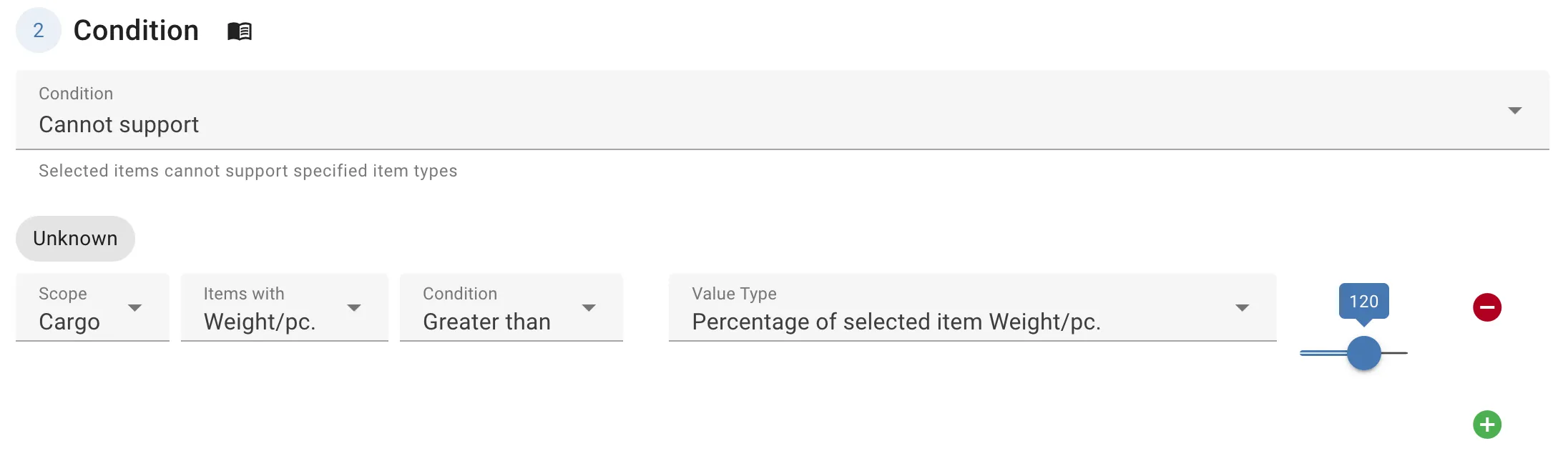
Conditions that compare two groups of items — such as Cannot support, Can only support or Cannot be loaded with — have a second selector. In this selector, Value type can be set to either:
- Fixed value — compare against a value you enter, like any other selector.
- Percentage of selected item (numbers) — compare against the corresponding value of the item selected in step 1, scaled by a percentage between 0 and 200%.
- Value of selected item (text) — compare against the corresponding text of the item selected in step 1.
This makes it possible to write rules that relate items to each other rather than to fixed values. For example, Cannot support items with Weight Greater than 120% of selected item means no item can carry another item more than 20% heavier than itself.
Must be loaded before does not support relative values.
Conditions
Cannot be loaded in
Selected items cannot be loaded in specified container types.
Example: Items with Class “DG” cannot be loaded in 40ft Open Top.
Cannot be loaded with
Selected items cannot be loaded in the same container as specified items. Useful for segregating incompatible cargo, such as hazardous materials that cannot be stored alongside food products, or items with conflicting handling requirements.
Example: Items with Group/Shipment “Chemicals” cannot be loaded with items with Group/Shipment “Food”. Using a relative value — cannot be loaded with items whose Destination is Not equals the selected item’s Destination — keeps every container to a single destination.
Cannot exceed quantity
This condition is deprecated and is converted to Max total using Inner quantity as the property. Use Max total for new rules.
A max cap for the specified items in specified container types.
Example: At most 20 items with SKU “ENGINE-01” per container.
Max cargo types
A max cap for the number of unique values of a property that can be loaded into specified containers. Set Unique to the property to count, and the maximum number per container.
Example: Unique SKU, max 3 — each container holds at most three different SKUs, which simplifies picking and unloading at the destination.
Max total
A max cap for the summed value of a numeric property across all selected items in a single container. The value is entered in the property’s unit — weight, volume, length or plain number.
Example: Items with Class “Li-ion” — Sum of Weight/bundle, max 500 kg per container — limits the amount of battery cargo per container regardless of how many items it is split into.
Cannot support
Selected items cannot support specified item types. Useful when you need fine-grained control over stacking combinations — for example, preventing cargo from different shipments from supporting each other, restricting stacking to items within a certain weight ratio, or requiring identical dimensions before allowing stacking.
Example: All items cannot support items with Group/Shipment Not equals the selected item’s Group/Shipment — cargo is only stacked on cargo from the same shipment.
Example: Items with Used orientation not equals “LxWxH” or “WxLxH” cannot support any item. The cargo can only support other cargo when placed in certain orientations.
Can only support
Selected items can only support specified item types. The inverse of Cannot support — useful when a base item is only structurally suitable for specific cargo on top, such as a pallet designed for a particular product.
Example: Items with SKU “CRATE-BASE” can only support items with SKU “CRATE-TOP”.
Can only be side-by-side with
Selected items can only share a lengthwise section of the container with specified item types. The container is divided into slices along its length, and this rule restricts which other items are allowed to occupy the same slice. Useful for keeping incompatible cargo separated laterally — for example, ensuring hazardous goods are never placed alongside fragile items, even if they are not stacked on top of each other.
Example: All items can only be side-by-side with items with Length Equals 100% of the selected item — rows across the container are built from items of the same length, giving a flat face for the next row.
Cannot contain
Selected items cannot contain specified item types. Useful for cargo with inner spaces like Hollow Cylinders.
Example: Items with Geometry Hollow cylinder cannot contain items with Group/Shipment Not equals the selected item’s Group/Shipment — only cargo from the same shipment is nested inside a pipe.
Order by
Controls the loading sequence of selected items based on a specified property. By default items with the highest value are loaded first; check Is ascending to load the lowest value first. Note: this controls loading order, not physical position within the container.
Example: Items with Group/Shipment “Store 12” ordered by Weight/bundle — the heaviest items are loaded first and end up at the front of the container.
Must be on top of
Selected items must be on top of specified item types.
Example: Items with Bundle name Contains “lid” must be on top of items with Bundle name Contains “drum”.
Max height
The top of the selected items cannot exceed specified height.
Example: Items with Weight/bundle Greater than 500 kg have a max height of 1.8 m, so they can be reached and secured from the floor.
Max stacking height
The bottom of the selected items cannot exceed the specified height. This is distinct from Max height, which limits the top face — Max stacking height limits how high the item needs to be lifted during loading. Useful for heavy cargo that cannot be raised above a certain level, regardless of the item’s own dimensions.
Example: Items with Weight/bundle Greater than 40 kg have a max stacking height of 1.2 m, a limit for manual loading.
Must be loaded in
Selected items must be loaded in specified container types.
Example: Items with Group/Shipment “Refrigerate” must be loaded in 40ft Reefer.
Must be loaded before
Selected items must be loaded before specified item types. Since items loaded first end up deeper in the container, this also controls unloading order — items that should be unloaded last should be loaded first.
Example: Items with Destination “Stop 2” must be loaded before items with Destination “Stop 1”, so the first stop’s cargo is nearest the door.
Must be loaded first
Selected items must be loaded first.
Example: Items with Bottom Only Yes must be loaded first, so the heavy base layer is in place before anything else.
Must be loaded along centerline
Selected items must be placed along the lateral centerline of the container (the center of the width). Typically used for heavy cargo on trailers where left/right weight distribution is critical, such as preventing axle overload on one side.
Example: Items with Weight/bundle Greater than 5,000 kg must be loaded along the centerline of a flatbed trailer.
Must be loaded into secondary equipment (palletize)
Selected items will be loaded into secondary equipment — such as pallets, cartons, or inner containers — before being placed in the main container. Useful for grouping loose items that need to be palletized or boxed as part of the load plan.
Example: Items with Volume Less than 0.1 m³ must be palletized, while larger items are loaded loose.
Must load with pattern
Selected items must be loaded using the specified pattern. Patterns control the layout and orientation of large groups of cargo within the container.
Available patterns:
- No pattern — each item is placed individually without any pattern building
- One block — all cargo is rotated in the same direction
- Two block — two groups of cargo where the rotation differs between each block
- Four block — four adjacent groups of cargo, each with a different rotation
- Heightwise two block — creates two stacked two-block structures, using height rotations
- Restricted heightwise two block — like heightwise two block, but with strict limitations that keep the majority of cargo oriented longship
Note: higher block values include the simpler variants — a two block layout can produce a one block result.
Example: All cartons must load with One block, so every carton faces the same way for easier unloading.
Cannot load with pattern
Selected items cannot be loaded using the specified pattern. See Must load with pattern for a description of available patterns.
Example: Items with Group/Shipment “Appliances” cannot load with Heightwise two block, so they are never tipped onto their side.
Cannot load in container with
A container is only approved if its contents meet a minimum. The limitation is either Cargo Volume, Net Weight or Chargeable Weight, and the container is rejected if the total is less than the specified value. The rule is checked after the container has finished loading. A rejected container is emptied and the engine tries another container type; if no other type is available, the cargo is left unloaded.
This is useful when larger containers are only cost-effective above a certain fill level.
Example: Two rules — 40ft HC cannot be loaded with less than 70 m³, and 40ft DV cannot be loaded with less than 60 m³ — with a 20ft DV also available. Full loads go into 40ft containers, and the remainder ends up in 20ft containers instead of a half-empty 40ft.
Minimize mixing
Items with different values for the specified property should not be mixed in the same container. A threshold condition controls when mixing is acceptable as a trade-off.
Three threshold conditions are available:
- Limit container count — only allow mixing if it would reduce the total number of containers below the specified limit. Also acts as a hard cap on the maximum number of containers.
- Limit total cost — only allow mixing if the total cost exceeds the specified limit. Also acts as a hard cap on total cost.
- Increase cost of mixed containers — allow mixing to reduce container count, but apply a cost penalty to mixed containers to discourage it.
Example: Minimize mixing on Group/Shipment with Increase cost of mixed containers — each customer gets their own containers where possible, but small remainders can still share a container rather than ship nearly empty.
Must be loaded in a single container
Selected items with the same value for the specified property must be loaded in a single container. For example, all items from the same shipment ID will be kept together. Useful when splitting a group across containers is not acceptable for operational or customer reasons.
Example: All items with the same Group/Shipment must be loaded in a single container, so each purchase order arrives complete.
Must keep distance
Selected items must maintain a minimum distance from specified item types. For example, cargo from shipment A must stay at least 2m away from cargo from shipment B.
Example: Items with Class “Oxidizer” must keep 3 m distance from items with Class “Flammable”.
Must touch side
Selected items must be placed flush against specified container sides. Useful for cargo that needs to be loaded against a wall for stability, or that must be accessible from a specific side during unloading.
Example 1: Items with Group/Shipment “Customs inspection” must touch the Rear side, so they can be reached when the doors are opened.
Example 2: Items with Used orientation “HxLxW” must touch the Floor as they are not stable enough to stack on other cargo in the given orientation.
Must be loaded in zone
Selected items must be loaded within a specified zone. A zone is defined by one or more container sides (Front, Rear, Side 1, Side 2, Floor, Roof) and a depth — the zone extends inward from each selected side by that length. When multiple sides are selected, the zone is their intersection, forming a corner or edge region. Note: if the selected sides produce an empty zone, affected items will be left unloaded.
Example: Items with Weight/bundle Greater than 1,000 kg must be loaded within 3 m of the Front, keeping heavy cargo over the trailer’s kingpin.
Keep equal ratio
Selected items with the same value for the specified property must be loaded in an equal ratio in each container. For example, if shipment A and shipment B each have 10 items and there are 2 containers, each container will receive 5 items from each shipment.
Example: Keep equal ratio on SKU for a retail replenishment — every container delivered to a store holds the same product mix.
Group by
Selected items are loaded closely together if they have the same value for the specified property. Includes options for reachability to ensure the loading and unloading of each group can be handled without moving another cargo group.
Property: The column in 1.Data that determines what group a cargo belongs to. If we select the column Group/Shipment this rule functions the same as Settings -> Group shipments together
Strict loading: When strict loading, the system must finish loading the current group before starting the next group. Generally, this will reduce the spread of Groups between multiple containers, and use more space while doing so.
Reach length: How far can the loader physically reach for a cargo, over another group. In other words, the maximum distance one group’s cargo may overlap the next group’s along the container’s length. When loading with a forklift this might be a greater distance than when loading by hand. A reach length of 0 gives a clean split between groups.
Reach to back of cargo: Does the loader require to reach the back of the cargo in order to load and unload the cargo. For lighter cargo we recommend this setting to be disabled.
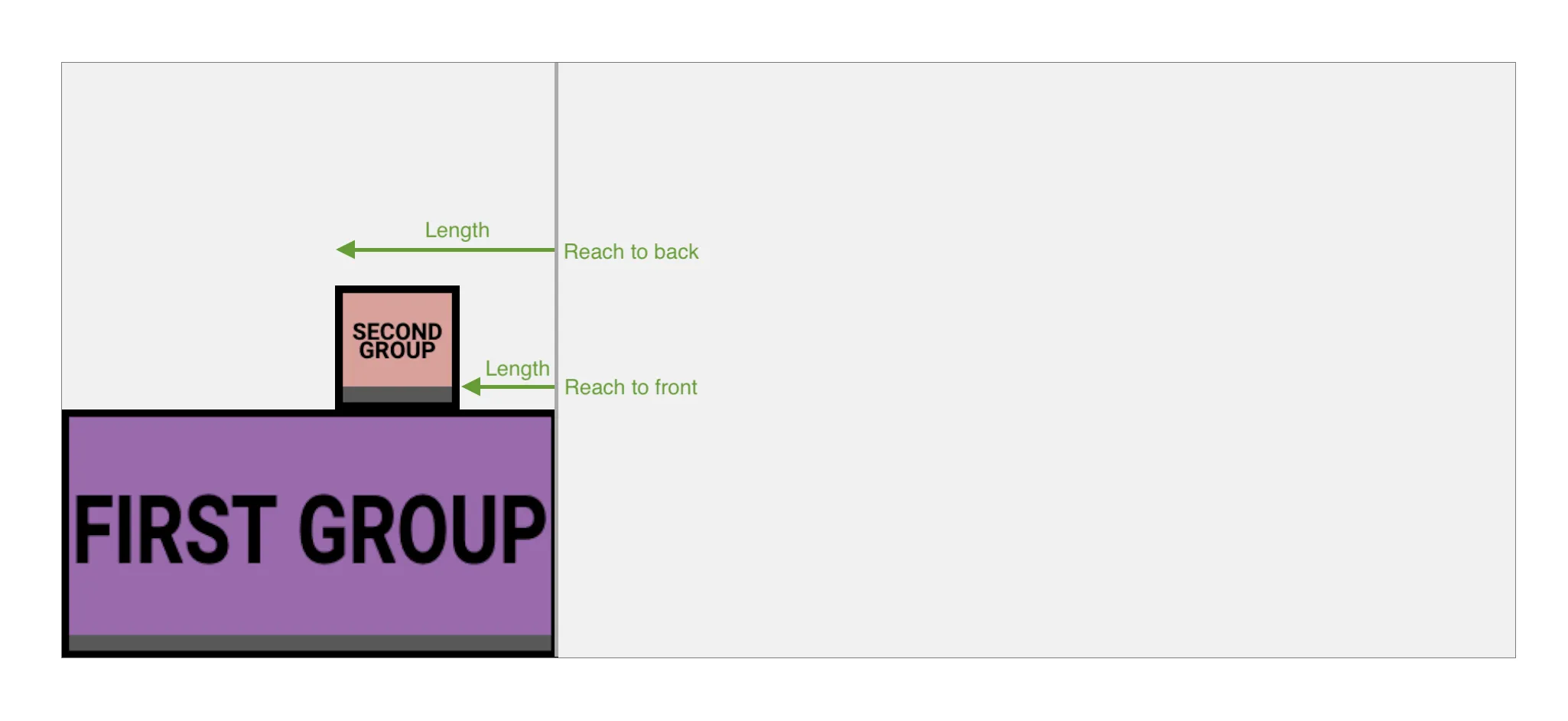 When loading from left to right, we can see that when Reach to back of cargo is active we need a larger length to place the cargo in the same position
Access width: How wide does a corridor need to be in order for the loader to walk/drive into it without any reaching necessary?
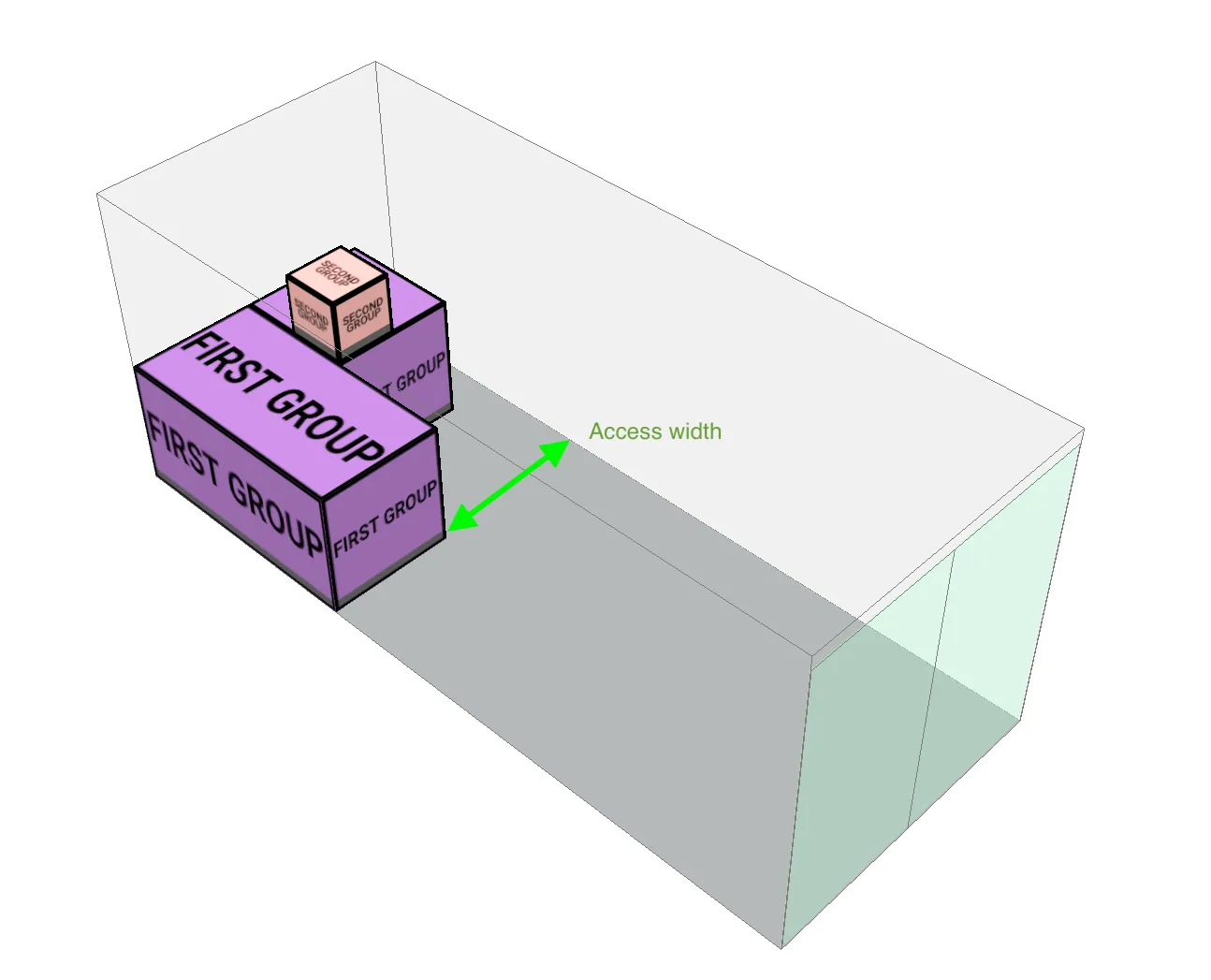 A large value for access width indicates that we are loading with a forklift (which is wider), and can’t drive into a narrow corridor
Example: Group by Destination with a reach length of 0.5 m for a multi-drop truck — at each stop the driver can unload that destination’s cargo without moving another stop’s cargo.
Cannot be loaded in zone
Selected items cannot be loaded within a specified zone. See Must be loaded in zone for a description of how zones are defined.
Example: Items with Group/Shipment “Fragile” cannot be loaded within 0.5 m of the Rear, keeping them away from the doors where impacts during handling are most likely.
Always stackable
Selected items (or pallets) are always stackable, regardless of weights and stackability properties. Useful for controlling the stackability when preloading pallets.
Example: Scope Secondary equipment containing items with Group/Shipment “Beverages” — the preloaded pallets are always stackable, even though individual cartons on them are not.
Allowed overhang
Selected items can have this amount of overhang. Overrides the overhang in settings for these items. If multiple overlapping overhang rules apply, the smallest will be used.
Example: Items with Bundle name Contains “panel” have an allowed overhang of 20%, while all other cargo uses the overhang from settings.
Allowed Out of Gauge
Out of Gauge (OOG) refers to cargo that extends beyond the physical boundaries of the container. This rule overrides the default OOG limits for selected items, setting both the permitted overhang and the maximum allowed. Useful for oversized cargo that is known to require extra clearance on specific edges.
Example: Items with SKU “BOAT-HULL” may extend 0.3 m over Side 1 and Side 2 of a flat rack.
Allowed Center of Gravity
The center of gravity of the specified containers must stay within the given distance from the container’s center, expressed as a percentage in the X-direction (length) and Y-direction (width). Overrides the center of gravity limits in settings for these containers. If multiple overlapping rules apply, the smallest value per direction is used.
This condition applies to every cargo in the container, so no items can be selected — only the container types in step 3.
Example: Flatbed trailer with X 10% and Y 5% — a tighter balance than the default for all other equipment.
Max weight per section
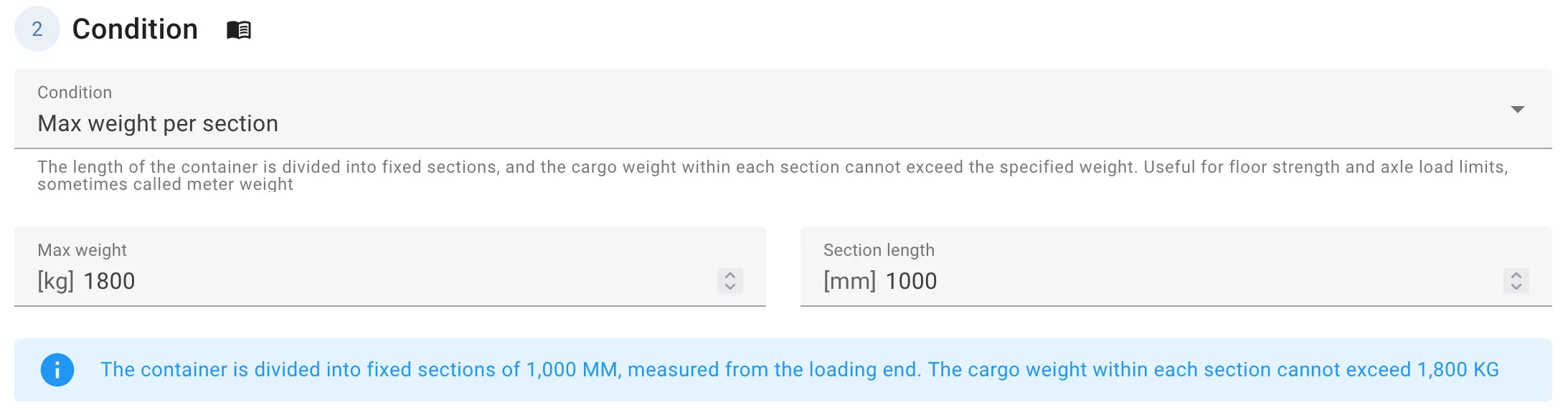
The length of the container is divided into fixed sections, measured from the loading end, and the cargo weight within each section cannot exceed the specified weight. Useful for floor strength and axle load limits, sometimes called meter weight.
Cargo that crosses a section boundary counts towards each section it overlaps, in proportion to how much of its footprint lies in that section. If the container length is not a multiple of the section length, the last section gets a proportionally lower limit.
Like Allowed Center of Gravity, this condition applies to every cargo in the container, so no items can be selected.
Example: Semi-trailer with a max weight of 1,800 kg per 1 m section, matching the trailer manufacturer’s floor rating.
Set as fillers
Selected items will only be loaded where there is space left after all other cargo has been placed. Useful for low-priority items that should fill gaps without influencing the main load plan.
Example: Items with Group/Shipment “Optional stock” are set as fillers, so they only use space left over by the main order.
This list is frequently being updated