Cargo-Planner Docs
Customizable Load plan Layouts
Cargo-Planner lets you decide how your load plans are presented. Instead of a fixed format, you build layouts by arranging information blocks directly on a load plan. This gives you control over what is shown and how it is organized for different audiences - detailed plans for warehouse staff, or compact summaries for customers.
Overview
With layouts you can:
- Drag and drop blocks to arrange your load plan, and see the result as you edit
- Choose from over 20 block types (3D views, tables, notes, instructions, etc.)
- Configure each block with its own settings
- Show or hide blocks based on conditions (e.g. only show photos if there are any)
- Create multiple layouts for different purposes (warehouse, customer, manager)
- Print and share the result
Opening the Layout Editor
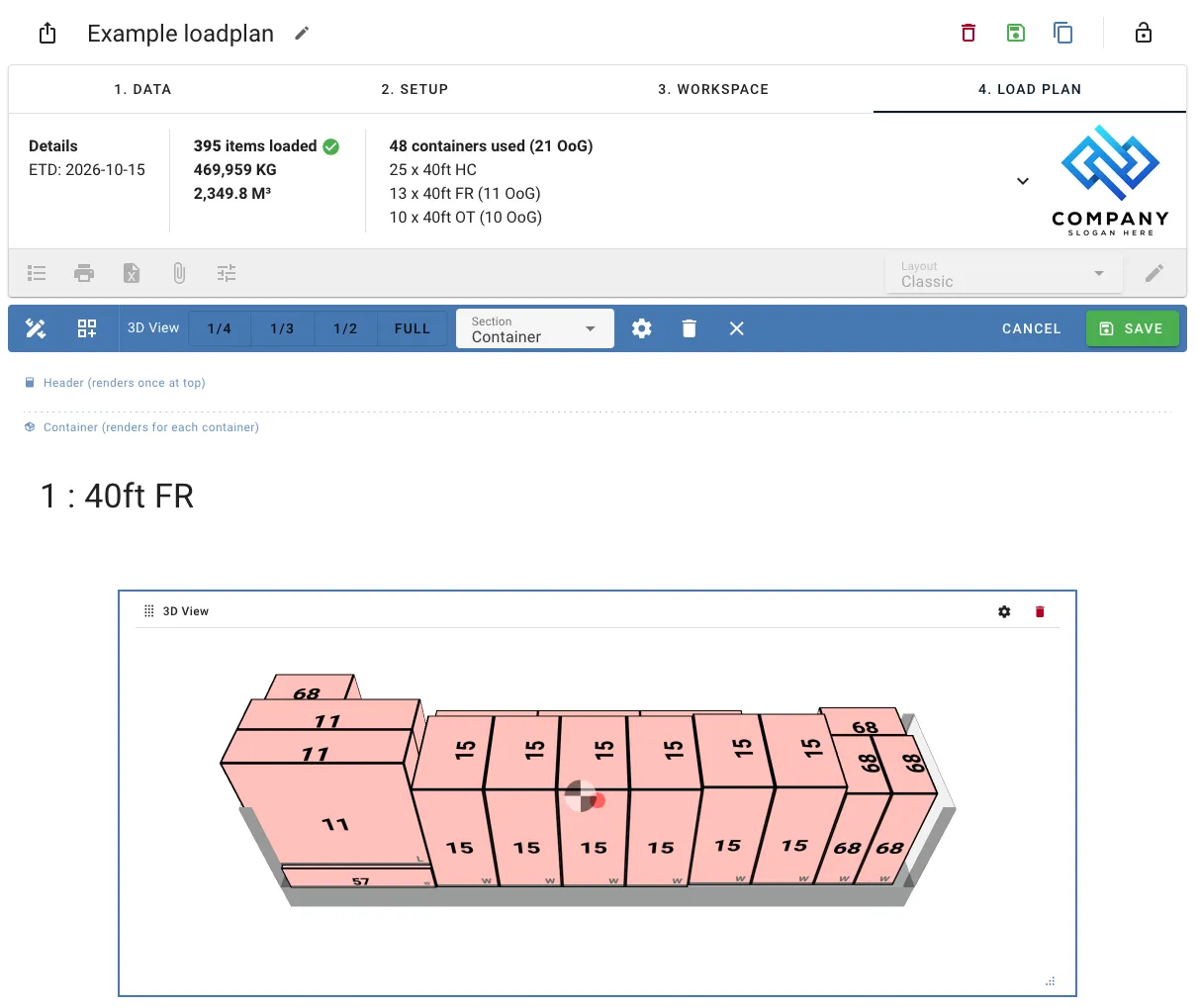
Layouts are edited in place: the load plan switches to edit mode, and every change shows up straight away with real content in the blocks. Nothing is stored until you click Save.
From the Load plan Page
- Open any load plan
- Pick a layout in the Layout selector in the toolbar
- Click the pencil icon next to it
The load plan you are looking at switches to edit mode. While editing, the Layout selector is locked.
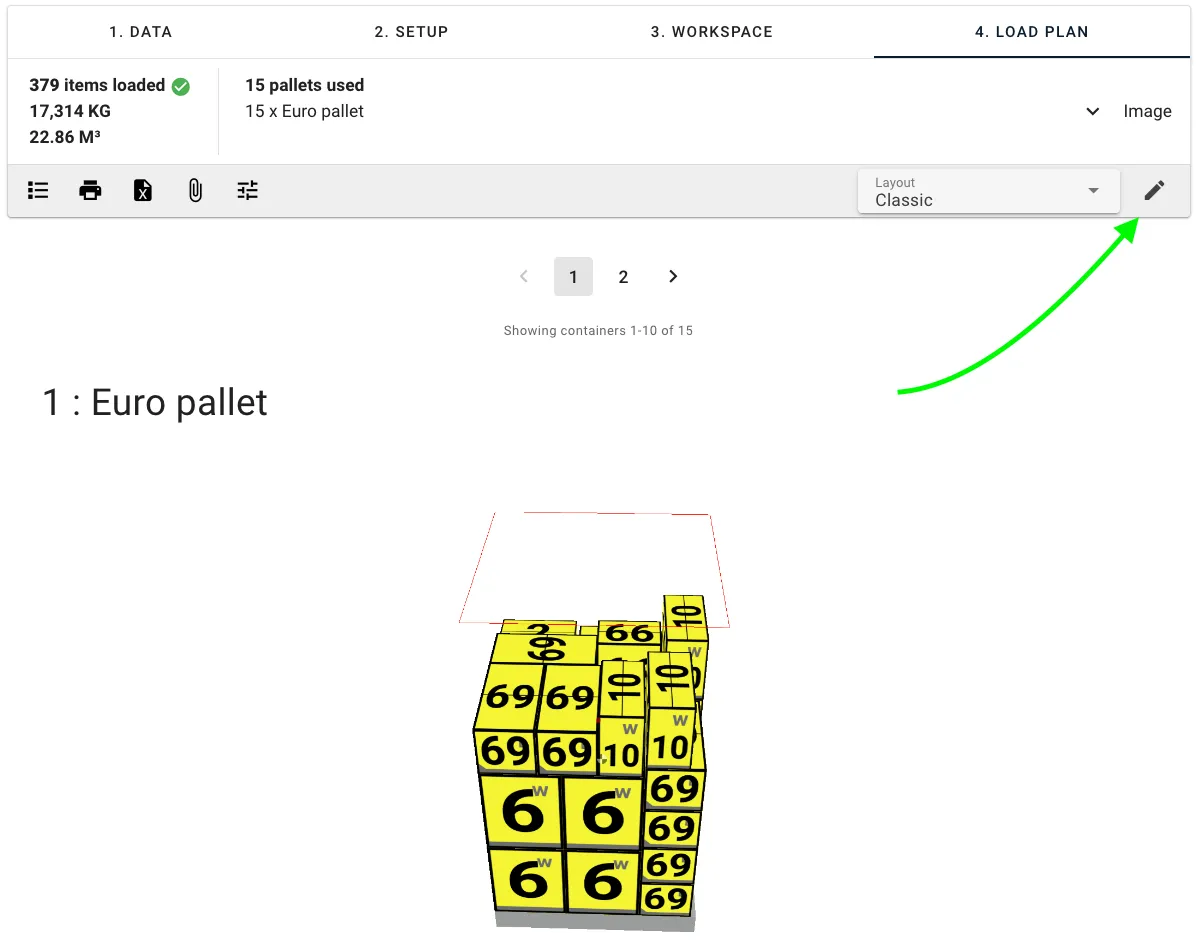
The pencil icon is only shown to users who can edit layouts, and is disabled when company settings are enforced or the load plan has no containers.
From Preferences
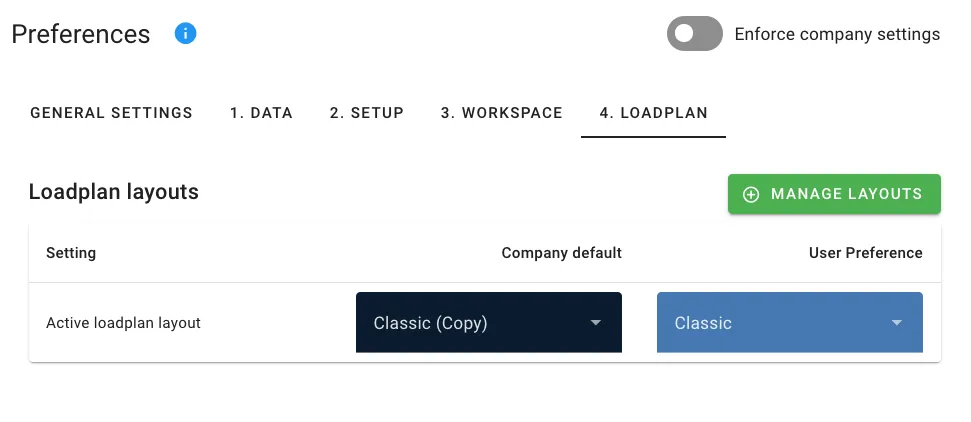
Go to Preferences → 4. Loadplan, and click Manage layouts under Loadplan layouts. This opens a list of all layouts, where you can create, edit, copy and delete them.
Editing a layout from here opens it on a sample load plan, with something in every block, so you can see what each block looks like without opening a real load plan. Your load plans show their own data. When you click Save or Cancel, you return to Preferences.
Edit Mode
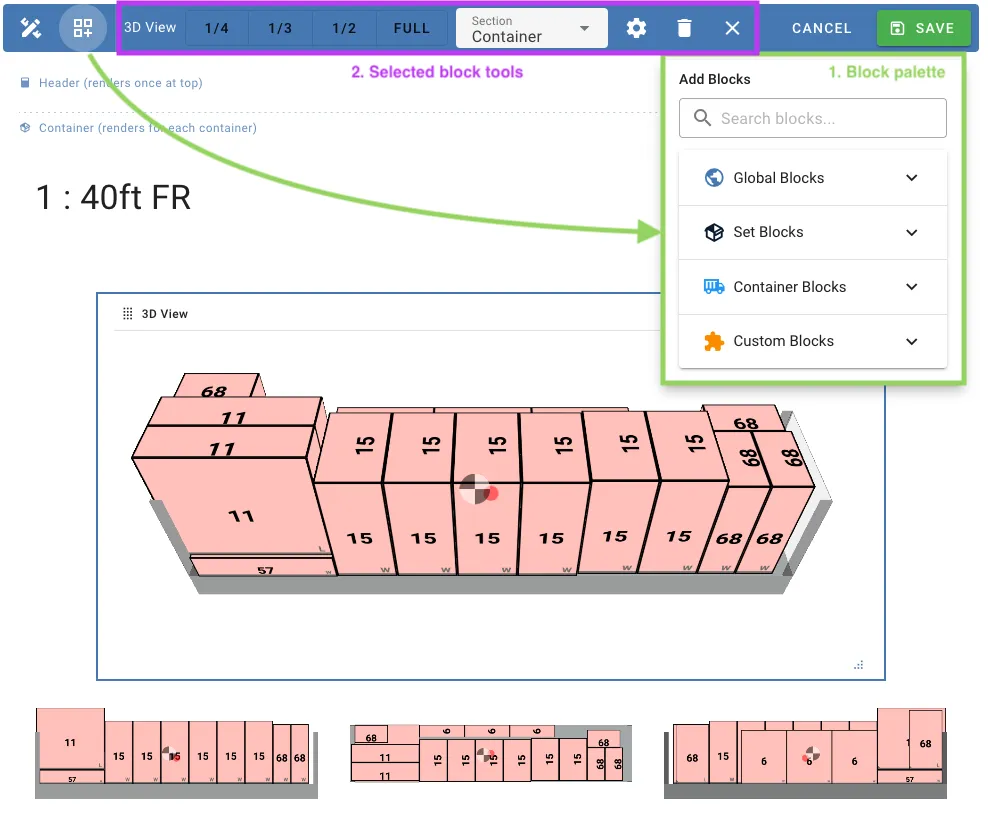
In edit mode a toolbar replaces the load plan toolbar and stays at the top of the screen while you scroll. Each block on the load plan gets a bar with its name and tools, and the load plan is divided into its sections.
The Edit Toolbar
| Control | What it does |
|---|---|
| Editing layout ”…” | The name of the layout you are editing |
| Name and description (rename icon) | Rename the layout and change its description. See Renaming a Layout |
| Add Blocks | Open the block palette |
| Cancel | Leave edit mode and discard your changes |
| Save | Store your changes and leave edit mode. For a template or a copy, you are asked for a name first |
When you are editing a template or a copy, the toolbar shows Template: saved as a new layout or Copy: saved as a new layout. See Using Templates.
If you leave the page with unsaved changes, you are asked whether to Save them, Discard them, or Keep editing.
Adding Blocks
Click Add Blocks to open the palette. It lists the available blocks by category:
- Global Blocks - Shown once for the entire load plan (summary, notes, unloaded items, etc.)
- Set Blocks - Multi-container set visualizations
- Container Blocks - Shown for each container (3D views, item tables, instructions, etc.)
- Custom Blocks - Custom text, spacers and page breaks
Drag a block from the palette onto the load plan to add it. Use Search blocks… to find a block by name.
You can also hover between two rows of blocks and click the + that appears, or click + in an empty section, and pick a block from the list.
Arranging Blocks
Blocks are arranged on a 12-column grid. On each block you can:
- Move it by dragging the handle at the left of its bar, also into another section
- Resize it by dragging the bottom-right corner
- Open its settings with the cog icon. See Block Settings
- Remove it with the delete icon
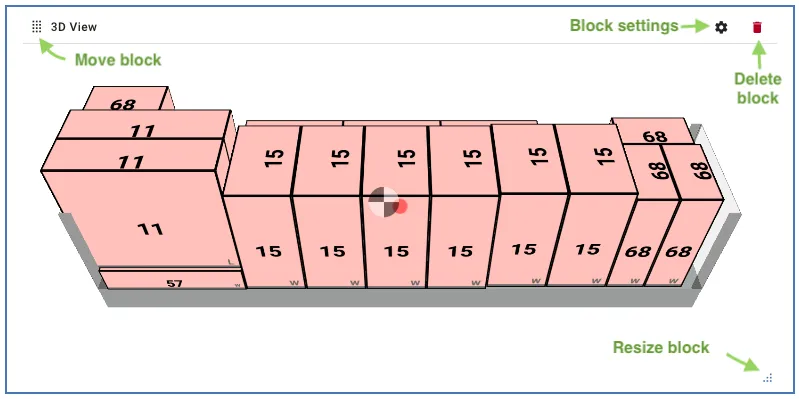
A Conditional label on the bar means the block has visibility conditions.
Click a block to select it. The toolbar then shows tools for that block:
| Control | What it does |
|---|---|
| Width | Set the width to 1/4, 1/3, 1/2 or Full |
| Section | Move the block to the header, container or footer section |
| Settings | Open the block’s settings |
| Remove | Remove the block |
| Deselect | Clear the selection. Clicking outside any block does the same |
Understanding Sections
Layouts are divided into three sections that control how often blocks are rendered:
| Section | Rendered | Typical blocks |
|---|---|---|
| Header | Once, at the top | Title, summary, notes, unloaded items, group distribution |
| Container | Once for each container | 3D views, container info, items tables, instructions |
| Footer | Once, at the bottom | Terms and conditions, contact information, disclaimers |
Global and Custom blocks can go in any section. Container and Set blocks can only go in the Container section.
To move a block to another section, drag it there, select it and pick a Section in the toolbar, or change Section Placement in its settings.
Available Block Types
Global Blocks
Loadplan Title
Shows the name of the load list as a heading.
Author
Shows who created the load list, and optionally when.
| Setting | Description |
|---|---|
| Show Icon | Show an icon next to the name |
| Show Label | Show the label above the name |
| Show Creation Date | Show the date the load list was created |
| Custom Label | Replace the default “Created by” label |
| Custom Icon | Name of a Material Design icon to use |
| Text Size | Small, medium or large |
| Card Variant | Card style: outlined, flat, text or elevated |
| Card Color | Background color of the card |
Summary Table
A collapsible Loadlist summary with the full cargo list of the load list, as entered on the data page.
| Setting | Description |
|---|---|
| Expanded by default | Show the table expanded instead of collapsed |
Notes
Shows the load list notes and the load plan notes.
| Setting | Description |
|---|---|
| Show loadlist notes | Include the load list notes |
| Show loadplan notes | Include the load plan notes |
Unloaded Items
Lists the cargo that could not be loaded into any container.
| Setting | Description |
|---|---|
| Expanded by default | Show the list expanded instead of collapsed |
Group Distribution
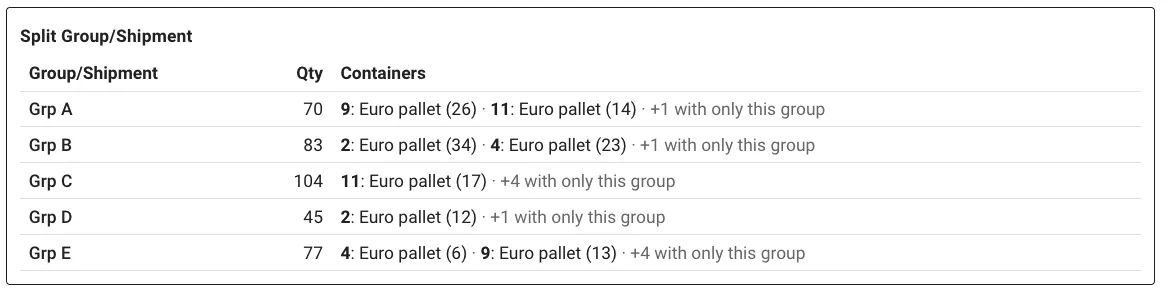
Shows where each shipment ended up: which containers it was loaded into, how many pieces went into each, and how many could not be loaded. By default it only lists shipments that were split, so you can check at a glance which shipments are spread over several containers.
Each row shows the shipment, its total number of pieces and the containers it went into, for example 1: 40HC (7) · 2: 20GP (5). A Not loaded column appears when part of a shipment could not be loaded. Rows are sorted by shipment.
| Setting | Description |
|---|---|
| Group by | The cargo property to group on. Defaults to the shipment, but any cargo property or custom field works, e.g. an order number or destination |
| Show all groups | List every group, not only the split ones |
| Only mixed containers | Only list the containers that also hold other groups. Containers holding a single group are summarised as a count, e.g. +3 with only this group |
A group counts as split when it is loaded into more than one container, or when only part of it is loaded.
Pieces on pallets and in bundles are counted individually, not the pallet or bundle itself. Cargo without a value for the selected property is left out. When identical containers are shown together (e.g. 1 to 3), the quantity is per container.
Set Blocks
Set Overview
Shows how the containers of a set are arranged together (useful for flatracks, open-tops, etc.). It is shown on the first container of each set with more than one container.
Container Blocks
Container Title
Shows the container number and name. Identical containers shown together get a range, e.g. 1 to 3.
| Setting | Description |
|---|---|
| Container title style | Number & Name, Number only or Name only |
3D View
Shows a 3D view of the loaded container. Add several to show the container from different angles.
| Setting | Description |
|---|---|
| View Type | Main, Side 1, Side 2, Top, Front, 3D, 3D Orthogonal, or one of four 3D perspectives (front-right, back-right, back-left, front-left) |
| Canvas Width / Height (px) | Size of the view |
| Show Ruler | Show dimension markers |
| Show Ruler Subdividers | Add finer markers to the ruler |
| Hide Center of Gravity marker | Hide the CoG marker |
| Exploded view | Place cargo labels around the container, with lines pointing to the cargo |
| Description | A caption shown with the view |
Cargo filtering limits the view to part of the container, e.g. to show what is loaded at the door:
| Setting | Description |
|---|---|
| Enable cargo filter | Turn the filter on |
| Position | Which part of the container: bottom, top, front, back, side 1 or side 2 |
| Threshold (%) | How far into the container the part reaches, as a percentage of its size (default 33%) |
| Mode | Show Only hides the other cargo, Highlight fades it |
Container Images
Shows the photos attached to the container. You can also add photos directly from the block; the number of photos per container is limited.
Container Info
Shows the inside length, width and height of the container, its payload, and its cost.
| Setting | Description |
|---|---|
| Font Size | Text size, from XXS to XXL. Default: S |
| Show Cost | Include the cost row, if the container has one |
Container Utilization
Shows how much of the container is used: volume, net weight and free space, and the chargeable weight when a shipping factor is set. A warning appears when the weight is close to the limit.
| Setting | Description |
|---|---|
| Font Size | Text size, from XXS to XXL. Default: S |
Container Totals
Shows the total length, width and height of the loaded cargo and the gross weight. If any cargo is out of gauge (OoG), the overhang is listed too.
| Setting | Description |
|---|---|
| Font Size | Text size, from XXS to XXL. Default: S |
CoG / Axles
Shows the center of gravity (X, Y and Z) and, for vehicles with axles, the net and gross axle weights. Axles over their limit are flagged.
| Setting | Description |
|---|---|
| Font Size | Text size, from XXS to XXL. Default: S |
OoG Warning
A warning flag that only appears on containers with out of gauge cargo.
Instructions
Step-by-step instructions for loading the container.
| Setting | Description |
|---|---|
| Loading Mode | By Layers, By Stacks or By Property. Can be changed for a single load plan from the view settings |
| Group steps by | With By Property: the cargo property each step groups on |
| Graphics Size | Small, medium or large step graphics |
| Camera Angle | Camera angle of the step graphics. Also used by the interactive guide |
| Hide Secondary Equipment | Leave out the steps for pallets and other secondary equipment |
| Flatten Secondary Equipment | With the above: list the contents of pallets instead of the pallet |
| Hide CoG marker | Hide the center of gravity marker in the step graphics |
Interactive Guide Link
A button that opens the interactive loading guide for the container, with an optional QR code so workers can scan a printed load plan and open the guide on a tablet.
| Setting | Description |
|---|---|
| Button Text | Text on the button. Default: “Open loading guide” |
| Loading Mode | How the guide groups the steps. Layout default follows the Instructions block |
| Camera Angle | The camera angle the guide opens at |
| Hide step count | Hide the number of steps below the button |
| Show QR code | Show a QR code that opens the guide |
Items Table
A table of the cargo in the container.
| Setting | Description |
|---|---|
| Table Density | Compact, default or comfortable font size and spacing |
| Hide totals row | Leave out the sum row at the bottom |
| Flatten Nested Items | List the contents of pallets and bundles in a flat list instead of nested |
| Append checkbox column | Add a column to tick off cargo as it is loaded |
| Visible Columns | Which columns the table shows |
| Item order | The order cargo is listed in |
| Additional Dimensions | Extra length and weight units to show next to the load list’s own |
Container Notes
Shows the notes of the container. Nothing is shown when the container has no notes.
Container Metadata
Shows the custom metadata fields of the container. The values can be filled in directly from the load plan, unless it is locked.
In the block settings, select which of your company’s metadata fields this layout shows. Edit fields lets you add or change the fields themselves.
Custom Blocks
Custom Text
Your own text, written in Markdown: headings, lists, bold, links, etc.
| Setting | Description |
|---|---|
| Title (optional) | A heading for the block |
| Content | The text, in Markdown |
| Wrap in card | Show the text with a border and padding |
Spacer
Adds vertical space between blocks.
| Setting | Description |
|---|---|
| Height (pixels) | Height of the spacer |
Page Break
Starts a new page at this point when printing or saving as PDF.
Block Settings
To change a block’s settings, click the cog icon on the block, or select the block and click Settings in the toolbar.
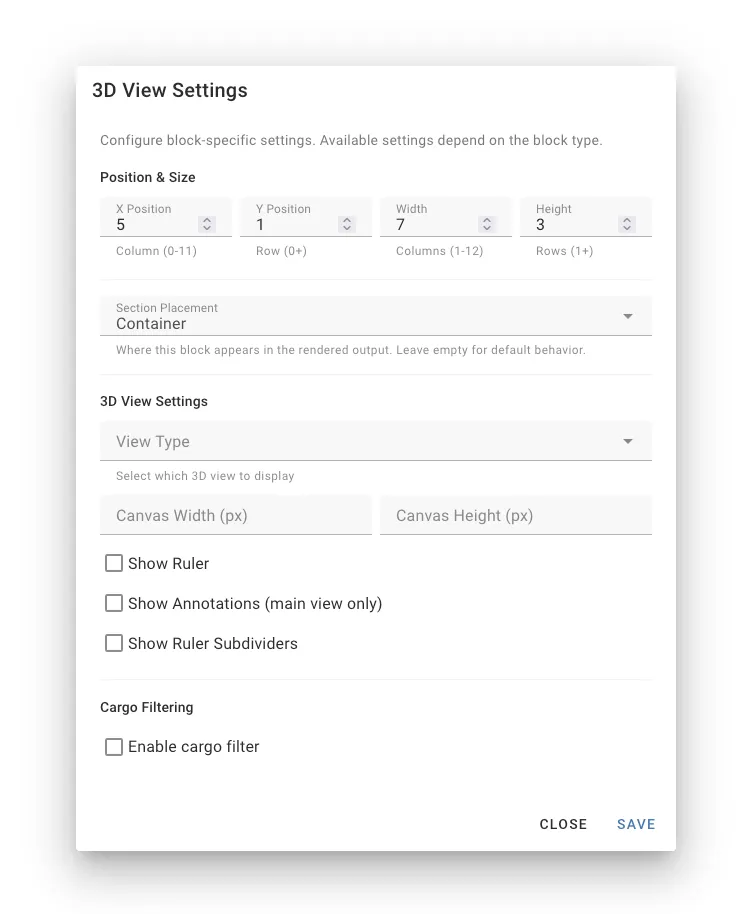
Save applies the changes to the layout you are editing, and moves the block if you changed its section. Cancel discards them. Like every other change, they are only stored when you save the layout.
Besides the block-specific settings described above, every block has:
| Setting | Description |
|---|---|
| Section Placement | Header, container or footer. See Understanding Sections |
| X Position | The column the block starts in (0-11) |
| Y Position | The row the block starts in |
| Width | Number of columns the block spans (1-12) |
| Height | Number of rows the block spans (1-12) |
Visibility Conditions
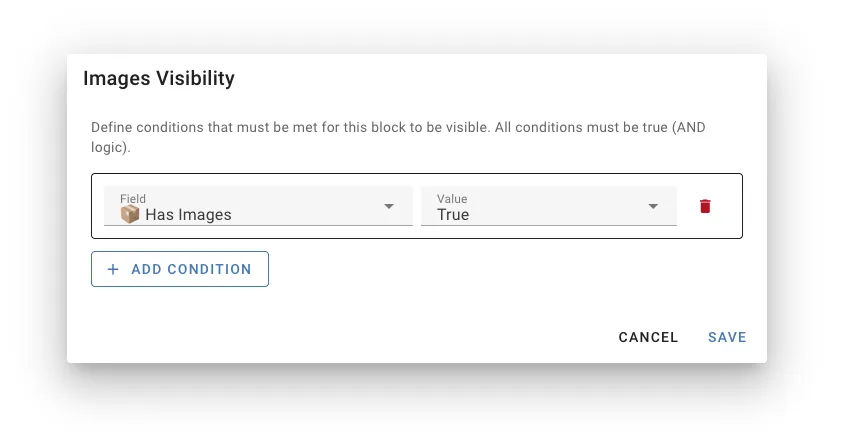
Visibility conditions make a block appear only when it is relevant, e.g. only show the photos block when there are photos.
Adding a Condition
- Open the block’s Settings
- Under Visibility Conditions, click Add Condition
- Pick a Field and the Value it should have (True or False)
A block with several conditions is only shown when all of them are met.
Available Fields
| Field | True when |
|---|---|
| Has Notes | The load list or load plan has notes |
| Show Unloaded in Loadplan | Unloaded cargo is set to be shown in the load plan |
| Has Unloaded Items | Some cargo could not be loaded |
| Is First in Set | The container is the first of a set with more than one container |
| Has Metadata | The container has metadata |
| Has Images | The container has photos |
| Has Container Notes | The container has notes |
| Simple Mode | Simple mode is on |
| Show Photos | Photos are turned on |
| Flatten Items | Items tables are flattened |
| Show Instructions | Loading instructions are turned on, in any mode |
| Show Ruler | The ruler is turned on for 3D views |
| Show Watermark | The watermark is turned on |
| Group Similar Containers | Identical containers are shown together |
Simple Mode through Group Similar Containers follow the load plan view settings, so a viewer can switch blocks on and off without changing the layout.
Examples
| Goal | Field | Value |
|---|---|---|
| Show the photos block only when there are photos | Has Images | True |
| Hide detailed blocks in simple mode | Simple Mode | False |
| Show a set overview only once per set | Is First in Set | True |
| Show a warning text when cargo is left over | Has Unloaded Items | True |
Managing Layouts
All layouts are managed from Preferences → 4. Loadplan → Manage layouts. Each layout in the list has icons to edit, copy and delete it.
Creating a Layout
- Click New layout
- Give it a name (e.g. “Warehouse Layout”, “Customer Summary”)
- The new, empty layout opens in edit mode on the sample load plan
- Add and arrange blocks, then click Save
To start from an existing layout or a template instead, copy it.
Using Templates
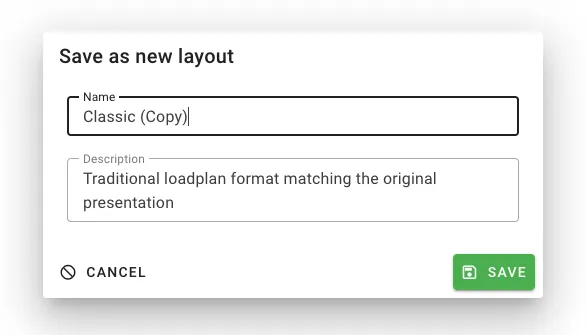
Cargo-Planner includes three templates: Classic, which replicates the traditional load plan format, Simple and Compact. Templates themselves never change, but you can start editing one at any time:
- Select the template in the Layout selector on a load plan and click the pencil icon, or click the copy icon next to it in Manage layouts
- Make your changes. The toolbar shows Template: saved as a new layout
- Click Save, and enter a Name and, optionally, a Description for the new layout
Your changes are saved as a new layout, and the template stays as it was. When you start from a load plan, the new layout becomes your selected layout. Saving a template there without changing anything creates no layout.
Setting a Default Layout
The default layout is used when you open a load plan. Set it in Preferences → 4. Loadplan under Active loadplan layout:
- Company default - the layout used by everyone in the company
- User Preference - your own default, which overrides the company default
Picking a layout in the Layout selector on a load plan also makes it your user preference.
Editing a Layout
Click the edit icon next to the layout in the list, or the pencil icon next to the Layout selector on a load plan. Make your changes and click Save. See Opening the Layout Editor.
Copying a Layout
- Click the copy icon next to the layout
- The layout opens in edit mode, as a copy. The toolbar shows Copy: saved as a new layout
- Make any changes and click Save
- Enter a Name and, optionally, a Description for the copy
The copy is only created when you save it. Cancel leaves the original untouched and creates nothing.
Renaming a Layout
- Open the layout in edit mode
- Click the rename icon (Name and description) in the edit toolbar
- Change the Name and Description, and click Apply
- Click Save
The description is shown below the layout’s name in the Layout selector on load plans.
Templates cannot be renamed. A template or a copy is named when you save it.
Deleting a Layout
- Click the delete icon next to the layout
- Confirm deletion
Templates (Classic, Simple and Compact) cannot be deleted.
Advanced: Query Parameters
When sharing or automating load plan links, you can set the layout and display settings with query parameters:
/loadlist/123/loadplan?layout=my-custom-layout&showRuler=true&simpleMode=false| Parameter | Values | Effect |
|---|---|---|
layout | Layout ID | Layout to use |
instructions | layers, stacks, by-prop, off | Loading instructions mode, or turn instructions off |
simpleMode | true / false | Simple mode |
flatItems | true / false | Flatten items tables |
showRuler | true / false | Ruler on 3D views |
showImages | true / false | Container photos |
showUnloaded | true / false | Show unloaded cargo |
showWatermark | true / false | Watermark |
print | Any value | Show all containers on one page, for printing |
This is useful for:
- Automated PDF generation via the API
- Sharing links with specific display settings
- Template URLs for consistent formatting
General Tips
- Start with a template - Copy Classic, Simple or Compact rather than starting empty
- Create multiple layouts - Different audiences need different information
- Name layouts clearly - Use descriptive names like “Warehouse - Detailed” or “Customer - Summary”
- Keep it simple - Don’t overwhelm the reader with information
- Check the print - Test how the layout looks when printed or saved as PDF
Troubleshooting
Block Not Displaying
Check if:
- The block has visibility conditions that aren’t met (look for the Conditional label)
- The block has nothing to show, e.g. a notes block when there are no notes, or the OoG warning when no cargo is out of gauge
- The block is in the section you expect (Header, Container or Footer)
Block Disappeared After Moving It
Container and Set blocks only work in the Container section. If you move one to the Header or Footer, it is removed and a warning is shown.
Can’t Edit a Template
Templates (Classic, Simple and Compact) cannot be changed. Edit the template as usual: when you click Save, your changes are saved as a new layout, under a name you choose. See Using Templates.
Related Documentation
- Load plan view settings - Temporary display options
- Load plan sharing - Share load plans with clients
- Creating a load plan - Getting started tutorial