Cargo-Planner Docs
Set builder
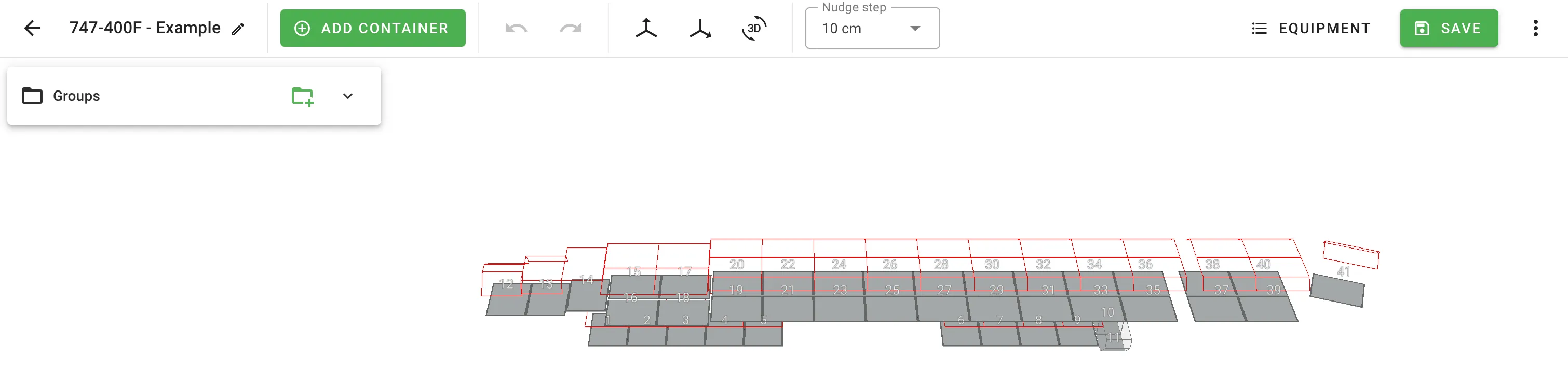
Set Builder is the tool for defining a piece of equipment that contains more than one container: an aircraft with cargo bays, a cargo vessel with holds, a road train with a tractor and trailers, a warehouse with numbered bays. The load plan then treats the whole thing as one unit and places cargo across its parts according to a fixed layout.
Set Builder is an Enterprise subscription feature. If you don’t see the library described below, your account is not on a plan that includes it.
What Cargo-Planner calls a set
Marketing and this documentation call the feature “Set Builder”, but in the app itself the terminology adapts to the mode you’re working in:
| Mode | Library name in the app | Typical examples |
|---|---|---|
| Sea | Vessels | Container ships, breakbulk vessels, RoRo decks |
| Air | Aircrafts | Freighter aircraft models with named cargo bays (main deck, lower deck) |
| Road | Road trains | Superlinks, tractor + trailer + dolly combinations, drop-and-hook combos |
| Warehouse | Warehouses | Warehouse floors and bay groupings |
A significant default library ships with the product — real vessel and aircraft models (Boeing freighters, common container ships) are pre-defined. You can also build your own.
Where sets live
- Equipment: in the main navigation, then pick the tab matching your mode (Vessels / Aircrafts / Road trains / Warehouses). The library lists every set type you have access to with a preview per row.
- Editor: click a set to open the full-screen builder. Create new sets from the library’s New menu.
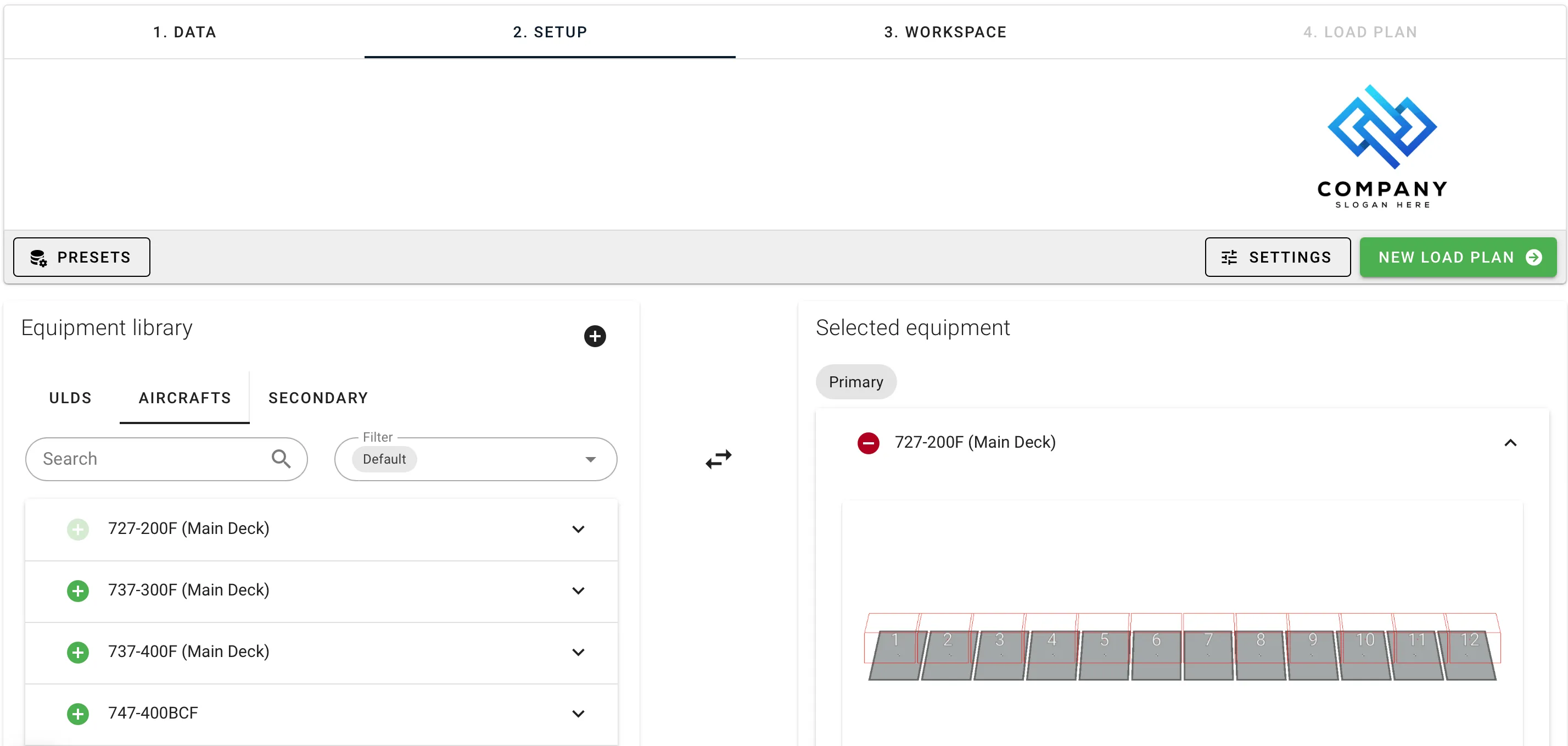
- Using a set in a load plan: on the Setup step, the corresponding library tab appears alongside Equipment and Pallets. Pick the set types the load plan may use.
Editing library sets requires the Equipment Editor permission.
Set properties
Every new set opens the Properties dialog first. You can reopen it from the toolbar at any time.
| Field | Meaning |
|---|---|
| Name | Required. What the set is called in the library and in load plans. |
| Payload | The total payload the whole set can carry. Independent of the payloads of its individual containers. |
| Default Cost | The set’s default relative cost, used by the solver’s cost objective when the set is chosen. |
Groups, positions and configurations
A set is built from three nested concepts:
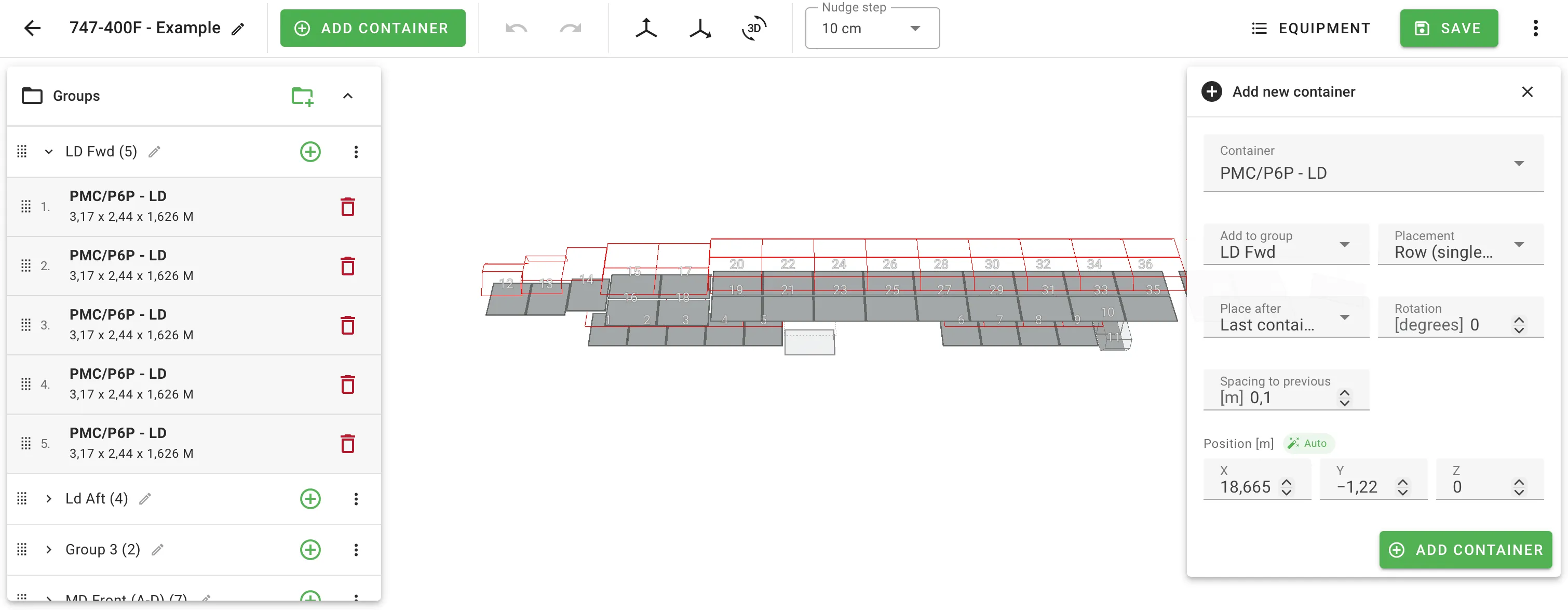
- A group is a named slot in the set — for example Tractor, Trailer 1, Trailer 2. Groups appear as expandable rows in the left panel.
- Each group holds one or more positions: the actual containers placed in that group. A group with two positions could hold two identical trailers side by side.
- Each group can carry multiple configurations: alternative arrangements of positions the solver may pick from. Use configurations when a group has more than one valid layout — for example a Trailer group with a “single 40ft” and a “two 20ft” configuration.
Add a new group with Add new group at the top of the left panel. Rename a group in place. The overflow menu on each group holds actions to add a configuration, split the group, move it, add a door, replace the container type, or delete it.
Adding a container
Click Add container in the toolbar (or the plus icon on a group) to open the Add panel on the right.
| Field | Meaning |
|---|---|
| Container type | Which library container to add. |
| Add to group | Which group the new container belongs to. |
| Placement | Row for a single container on the centerline, or Side by side for a mirrored pair. |
| Place after | The reference point the new position is measured from: Last container in group, Selected container, or Origin (the front of the set). |
| Rotation | Rotation around the vertical (Z) axis. Only the Z axis is exposed in the builder. |
| Spacing to previous | Gap between the new container and the reference point. |
| Gap between pair | Only shown in Side-by-side mode — lateral gap between the mirrored containers. |
| Position X / Y / Z | Absolute position of the new container. The Auto chip recomputes these from Placement and Spacing; editing an axis switches that axis to Manual. |
Editing a placed container
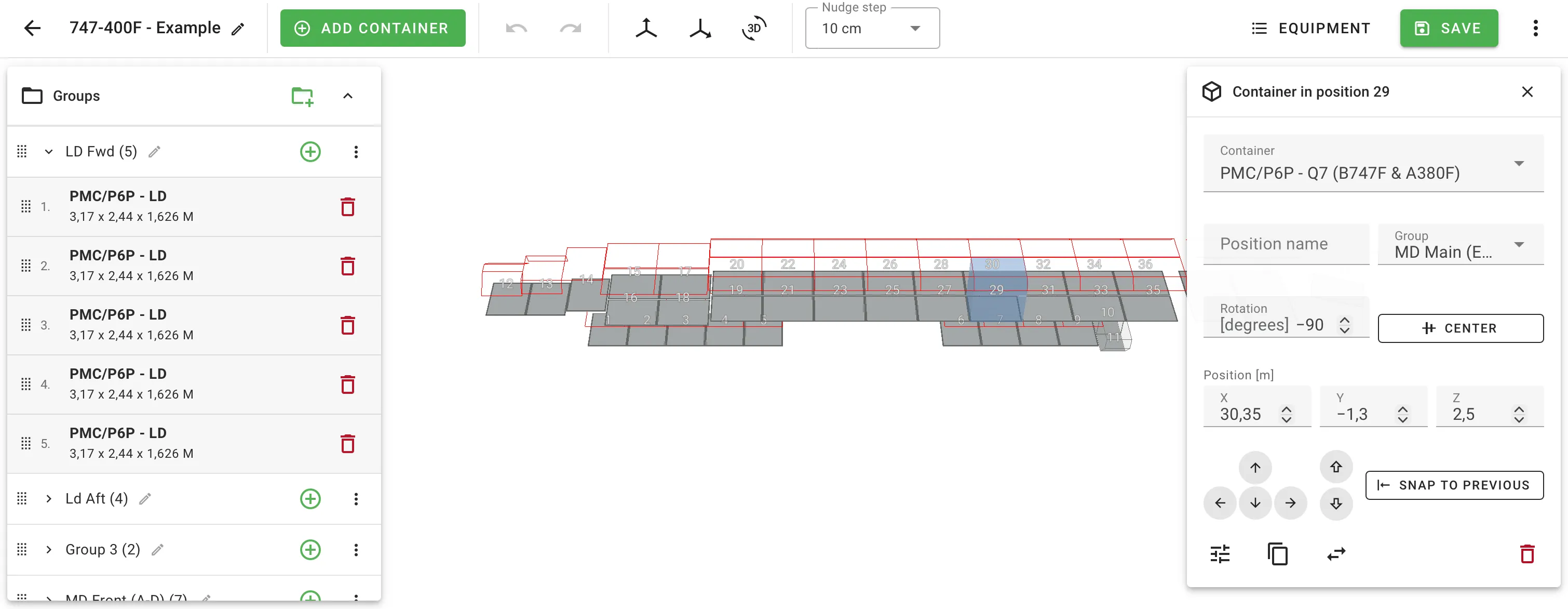
Click a container to open the Inspector panel on the right. It exposes the same position, rotation and grouping controls as the Add panel, plus:
- Nudge pad for arrow-key-precision moves. The step size is set from the toolbar (1 mm, 1 cm, 10 cm, or 1 in).
- Snap to previous to zero the spacing to the reference container.
- Center on centerline to zero the Y position.
- Position details opens a full container editor that saves only diffed fields as per-position overrides. The set’s container type stays intact.
- Duplicate, Replace container type, Delete.
The set records local overrides against L / W / H / payload / max height / max length / max width per position. If a position has overrides, the panel shows an alert with a Clear button.
Keyboard shortcuts
| Shortcut | Action |
|---|---|
| Arrow keys | Nudge the selected container by the toolbar step |
| Shift + arrow | Nudge by 10 × the step |
| Page Up / Page Down | Nudge Z |
| Delete / Backspace | Remove the selected container |
| Escape | Deselect / close the open panel |
| Ctrl + Z | Undo |
| Ctrl + Shift + Z or Ctrl + Y | Redo |
Right-click a container for the context menu (Edit, Position details, Add container after, Duplicate, Replace container type, Move to group, Delete).
Group doors
Each group can carry a door specification — width, height, and an At longside flag — for future-facing use. Door dimensions are stored with the set but are not currently enforced by the load calculation. The dialog surfaces this in its own note.
Using set types in a load plan
On the Setup step, open the Sets tab and add the set types the load plan may use. The solver then chooses between the selected equipment (containers, pallets, sets) based on the load and its constraints. To force the plan to always fill sets before falling back to individual containers, enable Load in sets in Primary settings. This setting also drives the multi-container ordering used by road-train workflows.
The interactive view shows each set as a single unit. Add the Set Overview block to a custom load-plan layout for a PDF summary of every set that was used.
See it in action
For an end-to-end example, Custom aircraft has a video walkthrough of building a Boeing 747-200F from a specification. A freighter aircraft is a good demonstration because it has enough named bays (main deck, lower deck) to exercise groups, configurations and per-position dimensions — but the same shape applies to any mode. One group per named bay or trailer position, positions inside each group for the physical containers.
Related
- Planning aircrafts — using an aircraft set in a load plan.
- Working with pallets — for the different mechanism where cargo is pre-palletised, not grouped by set.
- Custom containers — for editing the container types that go inside a set.
- Primary settings — the Load in sets solver hint.