Cargo-Planner Docs
Primary load settings
Primary load settings configure the load plan calculation and apply to the main equipment in your load plan — the containers, trailers or aircraft that cargo is loaded into.
They are the first tab of the Load settings dialog, reachable from the Setup view. If you preload cargo onto pallets or boxes first, those are governed separately by the secondary settings.
Note: Each section shows its most common settings first. The rest are hidden until you click Show more on that section. Settings marked below are found there.
Cargo
Under Show more: Shipping factor.
Error margin
A value in % (from -50 to 50) that describes how the dimensions of the cargoes should be interpreted.
If set to for example 10 - then a cargo that is 1x1x1 m will be enlarged so that its volume will be 1.1 m³. This might be useful if the cargo dimensions are not totally accurate.
In the same way if a value of -10 is provided then the cargo will be smaller than the provided dimension. This might be useful to simulate cargoes that can be “compressed” when loading by pushing and squeezing.
Shipping factor
The shipping factor is the main setting for deciding whether Cargo-Planner should aim for containers that are full by weight or full by volume.
Cargo-Planner always tries to maximize the chargeable weight loaded, and the shipping factor decides how chargeable weight is calculated. For each cargo, the volumetric weight is calculated from its volume and the shipping factor. The volumetric weight is compared against the actual weight, and whichever is higher is used as the chargeable weight.
The factor can be entered as kg/m3, lb/cu ft, cm3/kg or cu in/lb. With kg/m3 and lb/cu ft the volume is multiplied by the factor; with cm3/kg and cu in/lb the volume is divided by it.
| Factor (kg/m3) | Emphasis | Typical result |
|---|---|---|
| High (e.g. 1000) | Volume | Bulky cargo counts for more, giving volumetrically full containers |
| Low (e.g. 167) | Weight | Heavy cargo counts for more, giving containers close to max weight |
Note: For cm3/kg and cu in/lb the relationship is reversed. A high value such as 6000 cm3/kg (equal to 167 kg/m3) puts the emphasis on weight.
Stacking
Under Show more: Max stacking height, Height tolerance, Max layers property and Single cargo support.
Allowed overhang
If you allow a cargo to not have full support from below you can change the allowed overhang setting. Setting it to 0 means all cargoes need full support from below.
The overhang can be given either as a Percentage of the cargo’s dimensions (0–35%) or as a Length.
Allow heavy on light
Usually a cargo weighing 100kg cannot be loaded on a cargo weighing 50kg. However a box weighing 5kg can usually be loaded on a box weighing 4 kg. There are different opinions on this so you can change it here to fit your requirements. It will likely affect the utilization. It is enabled in the system default load preset.
Note: This setting will have an effect on the entire load list. If you want greater control over specific cargo items and how they should be allowed to be stacked, you might want to have a look at custom rules here.
Max stacking height
This setting is used to control how high cargo is allowed to be stacked. Individual cargo can still have a height that is above this limit, but stacks of cargo cannot.
Height tolerance
In a situation where you have different cargo being used as support, what is the largest accepted difference in height between the packages the system should allow to consider the space on top a single loadable area? Defaults to 5mm.
Max layers property
Controls how a cargo’s Max layers value is counted.
| Option | Description |
|---|---|
| Aggregated for all cargo | All cargo in the stack counts towards the limit, regardless of what it is |
| A cargo property | Only cargo with the same value for the selected property counts. If SKU is selected and SKU-A has max layers 3, SKU-B can still be stacked on top |
Single cargo support
Each cargo can only be supported by max one cargo below. This means that if a cargo item is not fully supported by one individual piece of cargo or pallet below, it will not be stacked.
Performance
Max calculation time
A number (defaults to 2), between 0 and 10 that sets the timeout for the load engine (in seconds). In general if you have multiple container types and many different cargo types a better result can be generated by increasing this number.
Long-running calculation (minutes)
If you have a wide range, and a large amount of cargo and/or pallets for preloading, the calculations quickly become complex and require a lot of processing power. In these cases, allowing the calculation engine to work for minutes (up to 30) can produce better results. If you create a long-running calculation, you will get an estimated time when the load plan will be done. The load plan is then calculated in the background while you continue working in the app. The result is saved to a new load list, and you will receive an email with a link to it.
Note: Long-running calculations are only available when the load list has more than 10 different cargo types.
Loading Style
Under Show more: Secondary goal, Stack filling order, Require front support, Max cost, Limit the allowed center of gravity, Prioritize pallet stability, Load in sets and Container selection.
| Option | Description |
|---|---|
| Auto | Will be set automatically depending on the characteristics of the container being loaded. For trucks and ocean containers the cargoes will be loaded from front to back. For Pallets and containers with no side walls cargoes will be loaded bottom up. |
| Front to back | Will load cargoes from the front to back. This is the default when creating truck and ocean container load plans. |
| Load bottom up | Will load the cargoes from floor and upwards and minimize the used height. As an example - when loading a sea container you do sometimes want to load stacks of boxes - outwards towards the door. For pallets though you usually build layer by layer, which is why this is what Auto picks for air containers & pallets. |
Secondary goal
| Option | Description |
|---|---|
| None | No secondary goal. This is the default |
| Minimize Length | Will try to “compress” the used length. May be useful if calculating loading meters / feet on trucks. Use with care - will require extra juice from the calculation which could affect overall result |
| Minimize Height | Will try to “compress” the used height. Useful if you want to spread the load over the whole container area. Use with care - will require extra juice from the calculation which could affect overall result |
| Stability | Shown as “Stability of [equipment type]”. If two solutions have the same cost, the more stable one is picked |
Stack filling order
Controls the order in which positions in the container are filled. This is an advanced setting — the default (Auto) works well in most cases.
| Option | Description | |
|---|---|---|
| Auto | Let the system decide based on the cargo and container type | |
| Row-by-row | Fill cargo across the full width one row at a time, advancing from front to back. Keeps height low and uniform. | 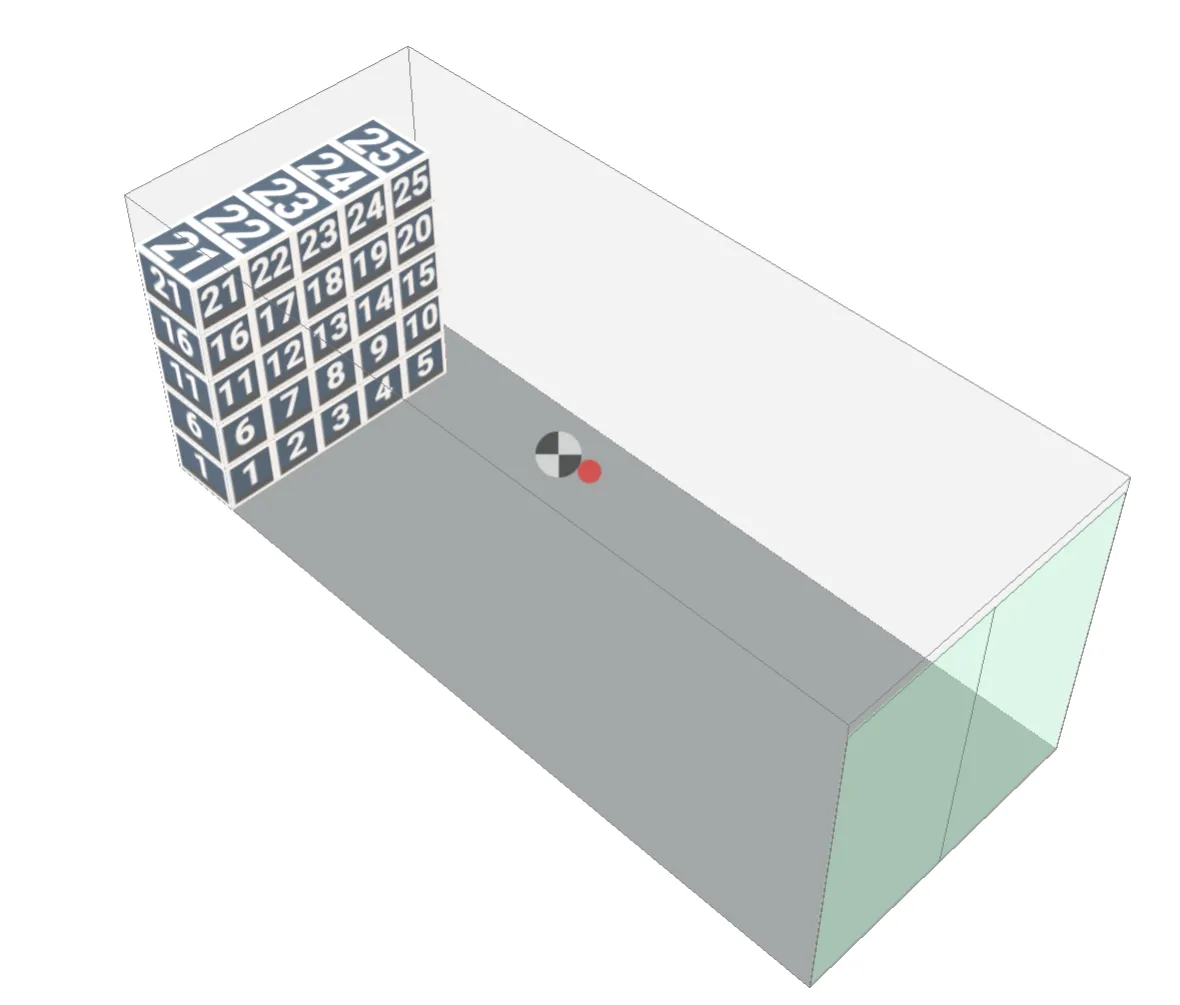 |
| Stack-by-stack: sweep across width | Complete each stack before moving on. Stacks are filled in depth-first order, sweeping left to right. | 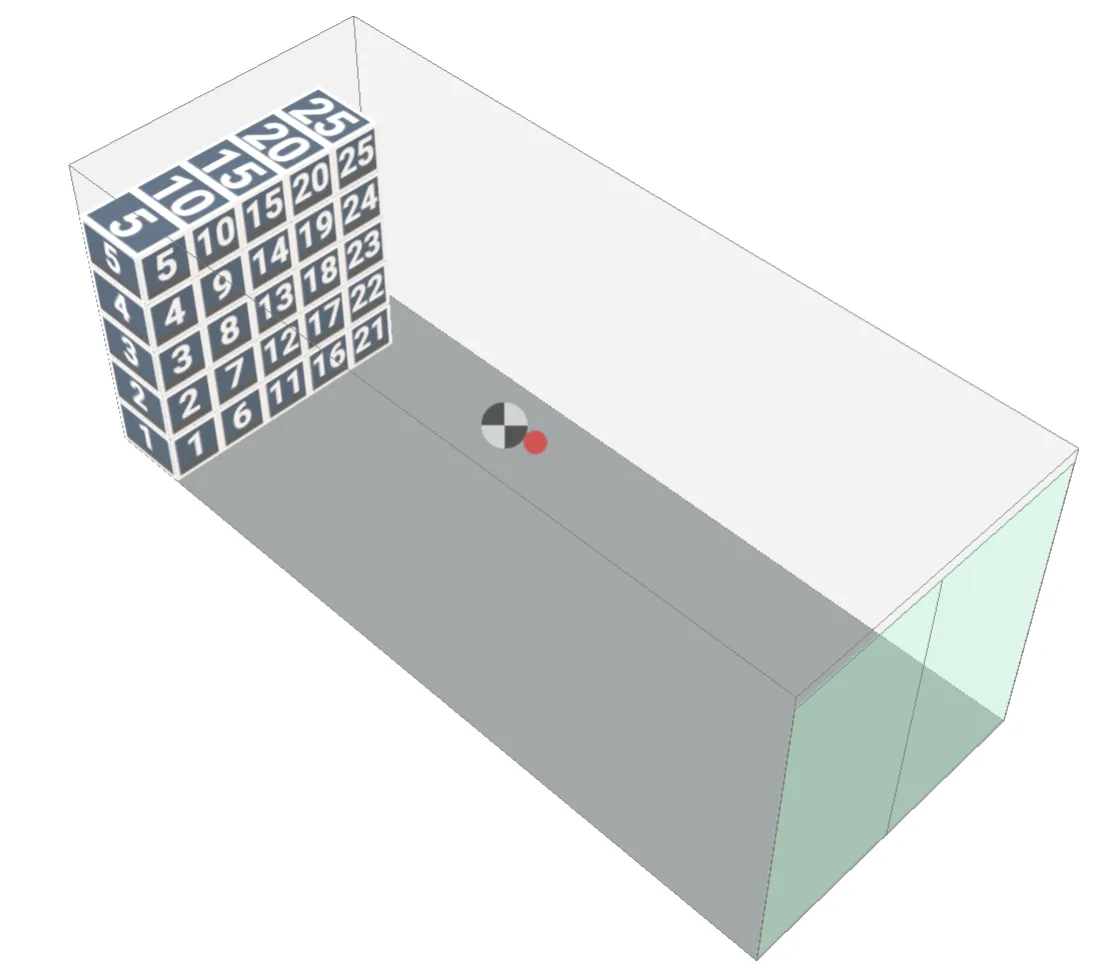 |
| Stack-by-stack: sweep along length | Complete each stack before moving on. Stacks are filled column by column, sweeping front to back. | 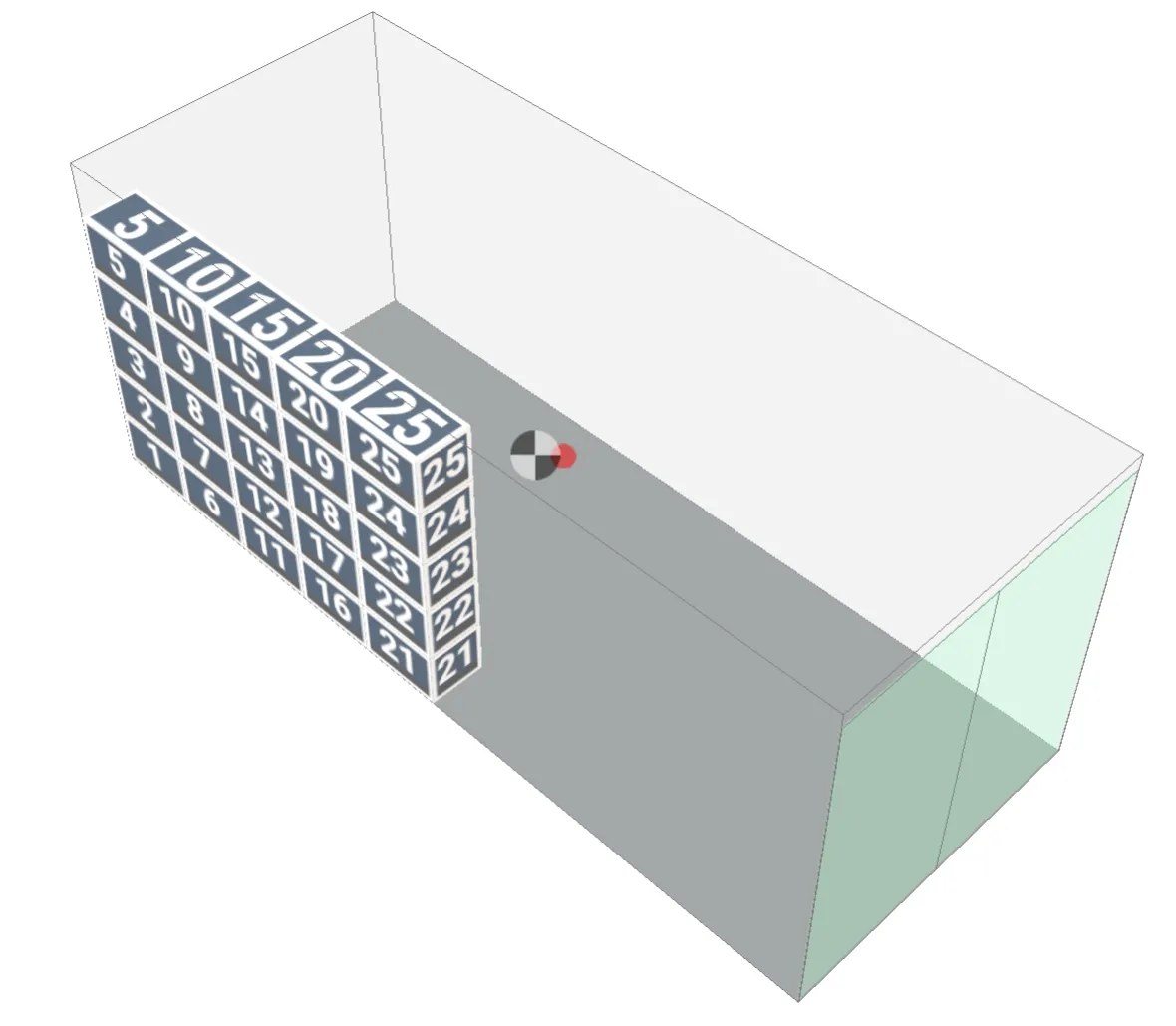 |
Max number of containers to be used
The label follows the equipment type, e.g. “Max number of trailers to be used”. Set an upper limit to how many containers are to be used for loading your imported cargo. Excess cargo will become unloaded items.
Enable routing
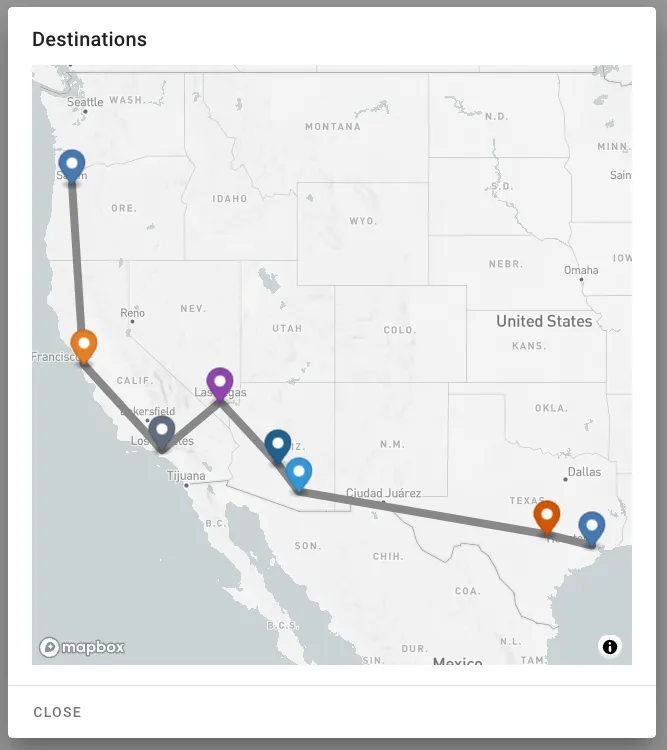
Only available for road load plans. Requires a Port of loading on the load plan and a Destination on each cargo. When enabled, Cargo-Planner:
- Finds the optimal delivery route, using roads the loaded trucks can actually drive.
- Sets the load order from each cargo’s destination, so the first stop is loaded last.
- Groups cargo by destination, so each stop can be unloaded without moving any other cargo.
Note: Routing overrides any priority set on an item.
For more fine-grained control of how each stop is unloaded, use a Group by custom rule on the Destination property. See Routing and load order for how to set destinations.
Strict priorities
A lower priority cargo is never allowed to be loaded before a higher priority, even if the higher priority can’t be loaded at all.
Require front support
Only available for trucks/trailers and sea containers. Requires every cargo to have front-facing support, which prevents cargo from shifting forward during braking. Will likely reduce utilization.
Max cost
Only available when the main equipment is pallets. Sets the largest total cost the load plan can have, not counting any additional cost functions.
Limit the allowed center of gravity
This setting will make sure the center of gravity stays within the given distance from the center of the container, set as a percentage in the X (length) and Y (width) direction. Both default to 20% when enabled. Will most likely affect the utilization of the container in a negative way.
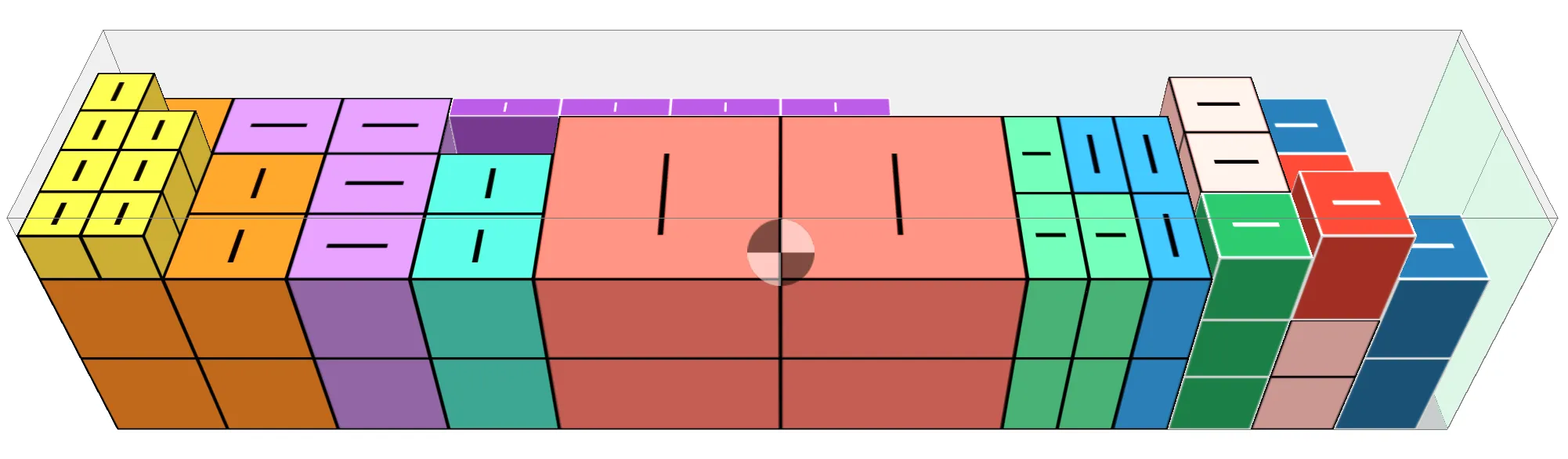
Prioritize pallet stability
If enabled pallets are built in layers, rather than towers, and stability is prioritized over utilization.
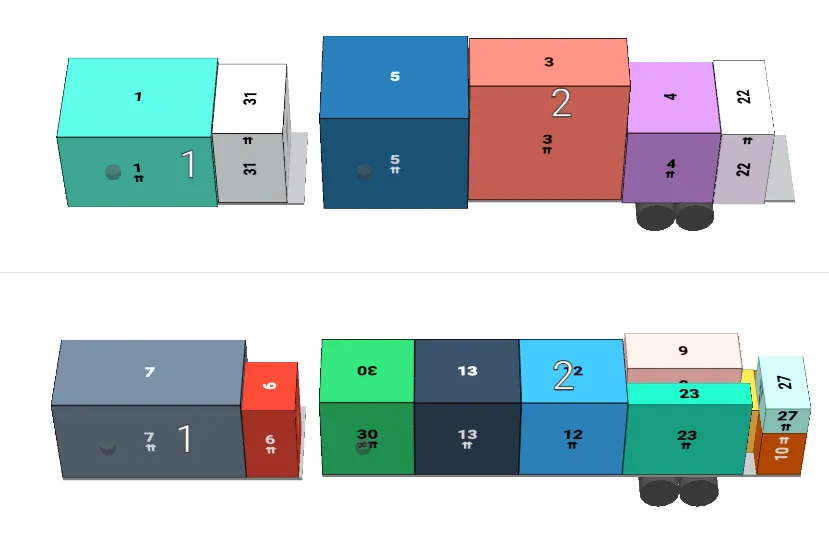
Load in sets
This setting is especially interesting for trucks & trailers. Lets say that you want to load a truck set with a front and rear trailer, like the commonly used Superlink in Africa. Then enable this setting and the selected equipment will alternate like below:
Container selection
Decides how the equipment types are picked when more than one is available. The label follows the equipment type, e.g. “Trailer Selection”.
| Option | Description |
|---|---|
| Predictive | Predicts the best combination of containers. Generally gives the lowest total cost. This is the default |
| Greedy | Picks the best value container type one by one. Generally minimizes the contents of the last container |
Shipments / Groups
These settings only affect cargoes that have a Group / Consignment ID set.
Under Show more: Use at most a single container per shipment and Entire shipments must be loaded or none.
Shipments cannot be mixed
This setting will make sure that cargo from different shipments are not packed into the same container.
Group shipments together
This setting will make sure that cargo that belong to the same shipment are packed next to each other without cargo in between.
Use at most a single container per shipment
If this setting is enabled, a shipment will be packed into a single container. If the entire shipment does not fit, the entire shipment will be unloaded.
Entire shipments must be loaded or none
This setting ensures that entire shipments are packed. If one cargo item from the shipment is excluded from the load plan, then the entire shipment will be unloaded.