Cargo-Planner Docs
Loadlists
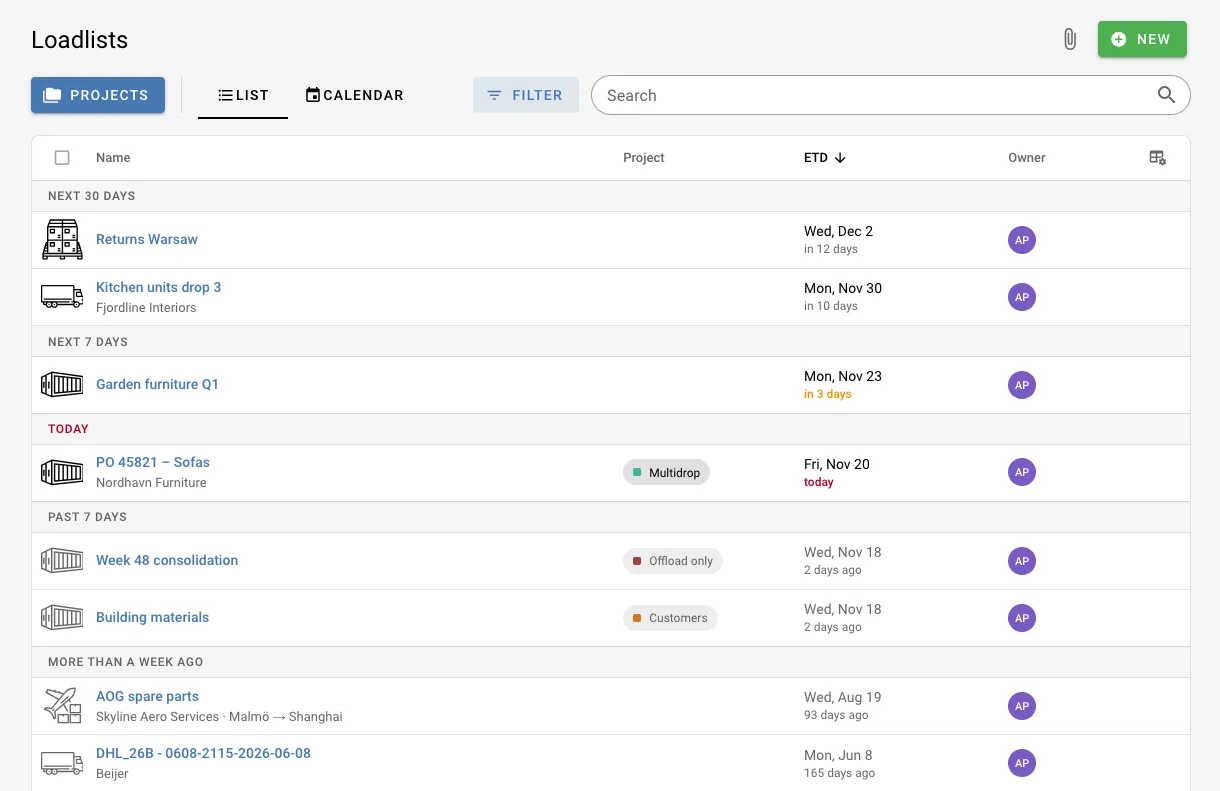
The Loadlists page shows every loadlist you have access to. Use it to find a loadlist, see what departs when, and keep your work organized in projects.
The page has two views, List and Calendar. Switch between them with the tabs below the page title. Search, filters and the selected project apply to both.
Find a loadlist
Search
The search field matches the loadlist name, customer, ports, notes and custom field values. To search for a specific cargo inside your loadlists, prefix the search with cargo:, for example cargo:abc123. When you open a loadlist from those results, the matching cargo is highlighted.
Sort and group
Click a column heading to sort by it, and click it again to reverse the order. Sorting by a date, project or owner also groups the list under headings:
| Sort by | Grouped by |
|---|---|
| ETD | Later, Next 30 days, Next 7 days, Today, Past 7 days, More than a week ago, No ETD |
| Modified | Today, Yesterday, Past 7 days, Earlier this month, then one heading per month |
| Project | One heading per project, plus No project |
| Owner | One heading per owner |
| Name | Not grouped |
The ETD column shows how far away each departure is, such as in 3 days. Departures today are marked in red and the next three days in orange. Loadlists that have already departed are faded.
Example: departures this week. Click the ETD heading and scroll to the Next 7 days and Today headings to see everything that leaves this week. The calendar shows the same loadlists by date.
The list loads more loadlists as you scroll. The count at the bottom shows how many are loaded out of the total.
Filter
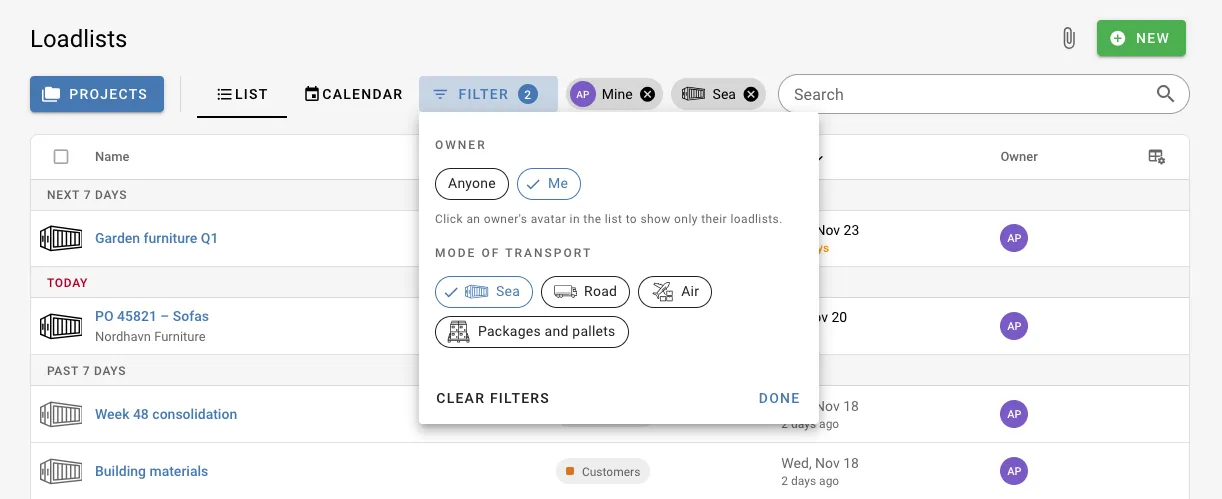
Click Filter next to the search field to narrow the list:
| Filter | Options |
|---|---|
| Owner | Anyone, Me, or a specific person |
| Mode of transport | Sea, Road, Air, Packages and pallets. Select several to include all of them. |
Active filters appear as chips next to the button. Click the cross on a chip to remove that filter, or click Clear filters in the menu to remove all of them.
To show only one person’s loadlists, click their avatar in the Owner column. Hover the avatar to see the owner’s email address.
Example: only your own loadlists. Open Filter and select Me under Owner. A Mine chip shows that the filter is active.
Isolated users only see their own loadlists, so the Owner filter is not shown to them. See Roles.
The search, sorting, filters and selected project are part of the page address. Copy the address from your browser to share the same view with a colleague.
Choose columns
Click the table settings icon at the right end of the column headings to choose which columns to show. Besides the name and type, you can show:
| Column | Shows |
|---|---|
| ETD | Estimated time of departure |
| Modified | When the loadlist was last changed |
| Created | When the loadlist was created |
| Project | The project the loadlist belongs to |
| Owner | Who created the loadlist |
| Customer | The customer |
| Port of loading | Where the shipment departs from |
| Port of destination | Where the shipment is going |
| Notes | The loadlist notes |
| Custom fields | Any custom fields your company uses |
The customer and ports are shown under the loadlist name when they don’t have their own column.
Preview a loadlist
Click a loadlist to preview it in a panel on the right, without leaving the page. The panel shows the loadlist details and, once it has loaded, the load plan with a 3D view of each container and a summary. A loadlist that has not been calculated yet shows its number of items.
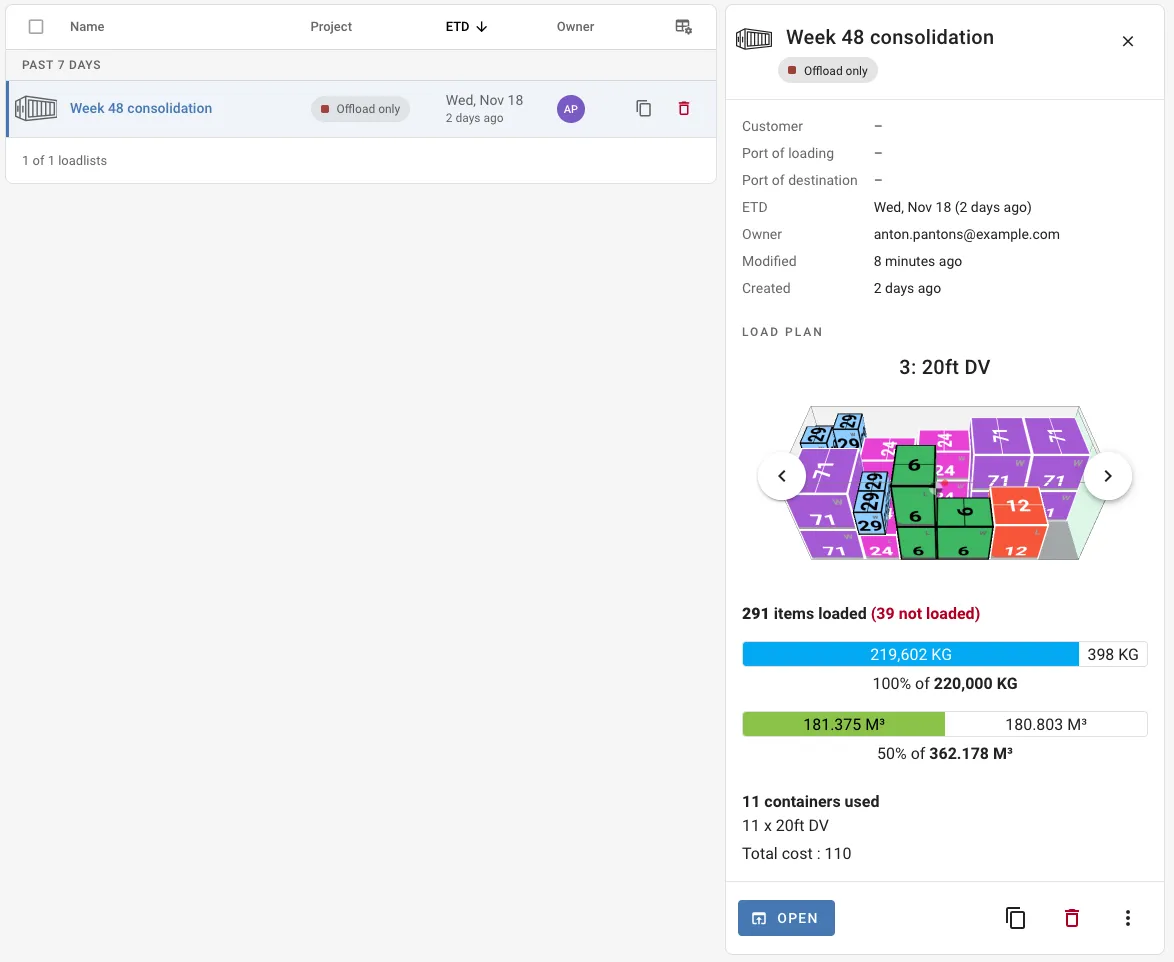
From the panel you can:
- Click Open to open the loadlist
- Copy or delete the loadlist
- Lock or unlock the loadlist from the menu. Only a calculated loadlist can be locked.
To open a loadlist directly, double-click it or click its name. Hold Ctrl (Cmd on Mac) while clicking the name to open it in a new tab.
On smaller screens the preview opens over the list instead of beside it.
Work with several loadlists
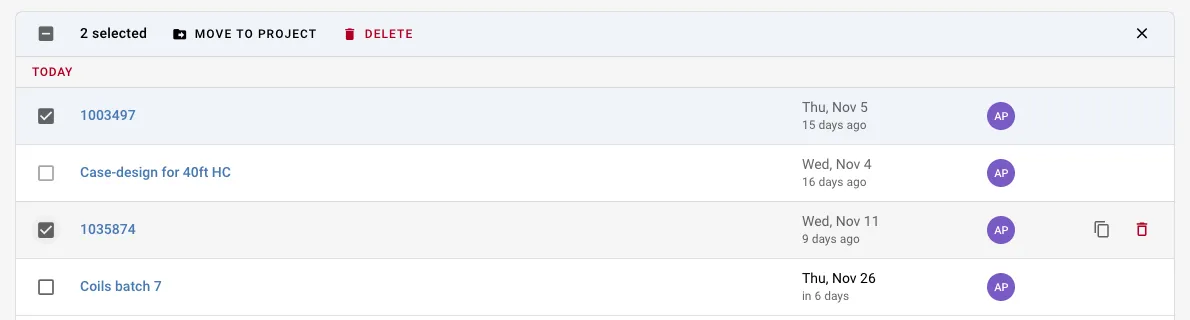
Hover a loadlist and click the checkbox that replaces its type icon to select it. You can also hold Shift or Ctrl while clicking a row. The column headings are replaced by the selection bar, where you can:
- Move to project: move the selected loadlists to a project, or to No project
- Delete: delete the selected loadlists
Click the cross at the end of the bar to clear the selection.
Example: tidying up after a busy month. Sort by Modified, select the loadlists for one customer and move them into that customer’s project with Move to project.
You can also drag a single loadlist onto a project in the Projects panel.
Calendar
The calendar shows loadlists on their ETD. Loadlists without an ETD are not shown in the calendar. Use the list sorted by ETD to find them under No ETD.
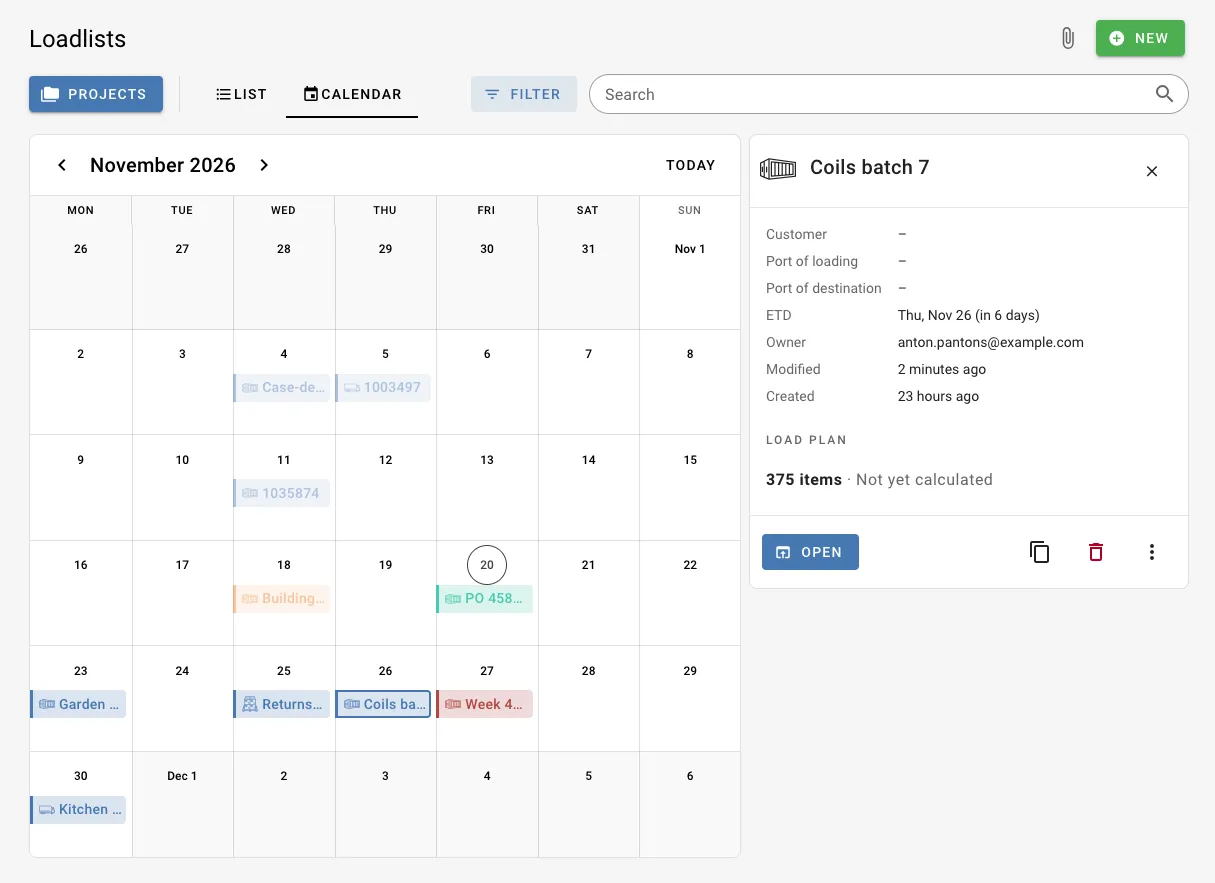
Use the arrows to move between months and Today to return to the current month. Each loadlist is shown in its project’s color, with its mode of transport icon. Hover a loadlist to see its customer, route and owner, and click it to open the same preview panel as in the list.
In the calendar you can:
- Create a loadlist for a date: click the day. The ETD is filled in, and so is the project if one is selected.
- Change the ETD: drag the loadlist to another day.
- Move it to a project: drag the loadlist onto a project in the Projects panel.
When a day has more loadlists than fit, the rest are collected under +N more.
Projects with recurring shipments show their upcoming dates as striped entries. Click one and choose Create loadlist to create the loadlist for that date.